This post is part of my 30 Days emacs challenge.
With years working with a variety of editors(vim, pico, nano, emacs). I find emacs to be capable of tasks such as text-editing, IDE, IRC, Organizer, mail client, source code management; yes emacs can do all these things with ease and is good at doing all of these.
I do not mean that other editors can’t do the things which emacs can, and really do not want to start an editor war over it, but the ease of doing things with emacs outweighs other editors.
The text editor comes with full-fledged documentation for common tasks for almost everything you want to do on your PC.
Before we go on exploring other topics for emacs, let’s start with knowing the emacs help system better.
emacs is an acronym for Editor MACros has macros been written within emacs for some common tasks and is available to anyone for writing macros for their repetitive tasks. In my later blogs, we will pick more on macros.
Just for an overview, in emacs, A keyboard macro is a sequence of keys. For example, if you want to type C-n M-d C-d forty times, you can define a keyboard macro to do C-n M-d C-d, and then executing it 39 more times.
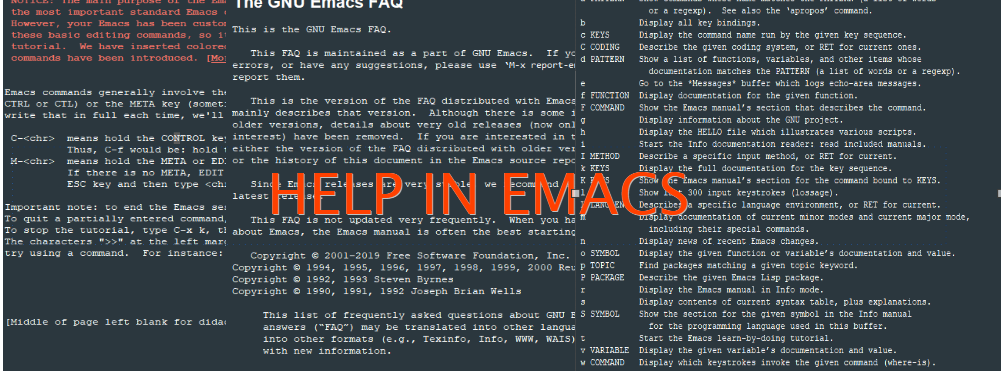
Emacs has the most robust help system available and all its help is available through a prefix of ‘C-h’ or F1. To know more on what is ‘C-‘ and ‘M-‘ in emacs please refer to my 30 Days emacs challenge.
Quickly find help in Emacs with its online documentation.
- The Landing page, if you are very new: C – h t (opens the Emacs Tutorial)
- Help on any function: F1 f function name
- Help on summary of help commands: F1 F1
- Help for topics: C – h a
- Help on the topic in the Emacs index shows the first result: C – h i d m emacs <RET> i topic <RET>
- Similar, but searched the text, instead of just indexes: C – h i d m emacs <RET> s topic <RET>
- Emacs FAQ: C – h C -f
- Available Emacs packages: C – h p
Every emacs command has a name that is used as mapped with key bindings. Most emacs commands don’t have key bindings so the only way to learn them is to use them as commands, by emacs convention all the commands will consist of one or more words separated by ‘-‘. For eg. auto-fill-mode or manual-entry. So to enter a command, type M-x “enter the name of the command” RET (to execute), In case you change your mind to cancel the command pressing C-g (to cancel) will immediately cancel the command and put you into the main buffer.
Similarly apropos are the commands which may answer certain questions as “what are the commands for working with files?”. specifying an apropos pattern such as a word, a list of words, or regular expressions, each apropos command display a list of item that matches the pattern in a separate window.
| Commands | Description |
|---|---|
| C-h a *TOPICS* | Searched for the command whose name matches the arguments |
| C-h i d m *emacs* RET i *TOPIC* RET | This searches for the topic in the indices of the online emacs manual, and prints the first match |
| ‘,’ to jump to the subsequent matches, we can also use regexes here. | |
| C-h i d m *emacs* RET s *TOPIC* RET | Same as above, but instead of just searching the indices, it searches the manual too. |
| C-h C-f | Displays the FAQ. |
| C-h p | Display all the emacs package based on the keywords. |
| C-h b | Display all active key bindings |
| C-h c *key* | show the name of the command it runs. (describe-key-briefly) |
| C-h d *TOPICS* RET | Display command and variables whose documentation matches the topic. (aprops-documentation) |
| C-h e | Display **Message** Buffer |
| C-h f *function* RET | Display documentation on the LISP function (describe-function) |
| C-h h | Display the ‘HELLO’ file |
| C-h i | Run info, the GNU documentation browser, the complete emacs document is available online in info |
| C-h key | Display the name and the documentation of the command that the key runs. (describe-key) |
| C-h l | Description of last 300 keystrokes. (view-lossage) |
| C-h f | Display documentation of the current major mode. (describe-mode) |
| C-h n | Display news of recent changes. (view-emacs-news) |
| C-h p | find packages by topic keyword. ((finder-by-keyword) |
| C-h r | Display the emacs manual. (info-emacs-manual) |
| C-h s | Display the current contents of the syntax table, with an explanation of what they mean |
| (describe-syntax) | |
| C-h t | enter the emacs interactive tutorial. (help-with-tutorial) |
| C-h v *var* RET | Display the doc for the LISP variable var. (describe-variable). |
| C-h w *command* RET | Show which keys run the command named command. (where-is) |
| C-h C *coding* RET | Describe the coding system. (describe-coding-system) |
| C-h C RET | Describe the coding system currently in use. |
| C-h F *COMMAND* RET | Enter Info and go to node that documents emacs command *command*. (info-goto-emacs-command-node) |
| C-h I *method* RET | Describe the input *method*. (describe-input-method) |
| C-h K *key* | go to the key-sequence document in Info. (Infp-goto-emacs-key-command-node) |
| C-h L *Language-env* RET | Display info on the character set, coding system, and input methods. (describe-language-environment) |
| C-h S *Symbol* RET | Display the info on the symbol *symbol* based on the programming mode you are using (info-lookup-symbol) |
| C-h . | Display message for the special text area. (display-local-help) |
| **Apropos** | |
| C-h a *pattern* RET | Search for a command whose names match the pattern. |
| M-x apropos RET *pattern* RET | Search for functions(both interactive and non-interactive) and variables whose name matches the *pattern* |
| M-x apropos-variable RET *pattern* RET | Search for user-option variables matching the *pattern*. |
| M-x apropos-value RET *pattern* RET | search for function whose definition match *pattern* and variable whose value matches *pattern* |
| C-h d *pattern* RET | search for function and variable whose documentation string matches *pattern* |
| **Emacs help files** | |
| C-h C-c | Describe the emacs copying condition. rules for copying and redistributing emacs. (describe-copying) |
| C-h C-d | Debugging in emacs. (view-emacs-debugging) |
| C-h g | Display general information about GNU Project. (describe-gnu-project) |
| C-h C-m | How to order printed copies. (view-order-manual) |
| C-h C-n | To see the emacs news and listing of new features. (view-emacs-news) |
| C-h C-o | How to get the new version. (describe-distribution) |
| C-h C-p | Tells us about the known emacs problems. (view-emacs-problems) |
| C-h C-t | Display the emacs TODO list or things that need to be done. (view-emacs-todo) |
| C-h C-w | Describe warranty. (describe-no-warranty) |
Commands work in Help mode
| SPC | Scroll forward |
| DEL | Scroll backward |
| TAB | Move point forward to next cross reference |
| S-TAB | Move point backward to the previous reference |
| RET | Follow a cross reference point. |
| C-c C-c | Show all documents of the symbol at the point. |
I am convinced the emacs has got the most extensive documentation an editor could ever have, the above table tries to cover as many things as possible but I am pretty sure, I would have definitely missed things, like this that once on IRC I had been suggested some lisp code to quickly take me to the help page and I missed it. Well, on many modern keyboards F1 works well for help.
I tried to cover as much help command as possible in today’s blog posts which will come in handy for daily usage. Will soon be publishing text editing with emacs.
Leave a Reply