Tag: Uncategorized

  • Facebook for Business Applications for grants are now open in India

    Considering the situation the Indian Businesses are right now in Facebook has offered to support small businesses which are facing challenges due to COVID-19. As part of their commitment to small businesses, they have announced a USD $100 million grant programme to support up to 30,000 eligible small businesses in more than 30 countries including India. Applications for this program are now open in India.

    Facebook invites to apply for a grant if your business meets the following eligibility requirements:

    • Have experienced challenges from COVID-19
    • Have between 2 and 50 employees as on January 1, 2020
    • Have been in business for over a year
    • Be a for-profit company
    • Be located in or near Facebook India offices: New Delhi, Gurugram, Bengaluru, Hyderabad, Mumbai

    The application deadline in India is 11:59 PM on September 21, 2020

    For more details, please visit the Facebook Small Business Grants Programme website.

    View Details and Apply

  • How to get help for Emacs

    How to get help for Emacs

    This post is part of my 30 Days emacs challenge

    With years working with a variety of editors(vim, pico, nano, emacs). I find emacs to be capable of tasks such as text-editing, IDE, IRC, Organizer, mail client, source code management; yes emacs can do all these things with ease and is good at doing all of these.

    I do not mean that other editors can’t do the things which emacs can, and really do not want to start an editor war over it, but the ease of doing things with emacs outweighs other editors.

    The text editor comes with full-fledged documentation for common tasks for almost everything you want to do on your PC. 

    Before we go on exploring other topics for emacs, let’s start with knowing the emacs help system better.

    emacs is an acronym for Editor MACros has macros been written within emacs for some common tasks and is available to anyone for writing macros for their repetitive tasks.  In my later blogs, we will pick more on macros.

    Just for an overview, in emacs, A keyboard macro is a sequence of keys. For example, if you want to type C-n M-d C-d forty times, you can define a keyboard macro to do C-n M-d C-d, and then executing it 39 more times. 

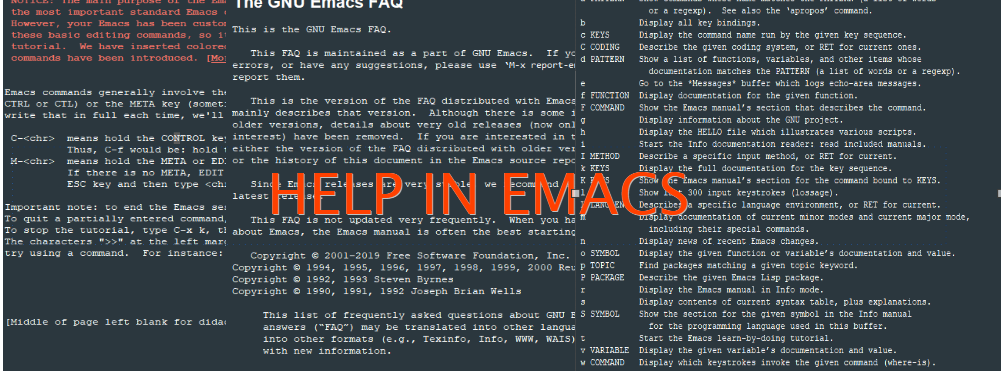
    Emacs has the most robust help system available and all its help is available through a prefix of ‘C-h’ or F1. To know more on what is ‘C-‘ and ‘M-‘ in emacs please refer to my 30 Days emacs challenge

    Quickly find help in Emacs with its online documentation.

    • The Landing page, if you are very new: C – h t (opens the Emacs Tutorial)
    • Help on any function: F1 f function name
    • Help on summary of help commands: F1 F1
    • Help for topics: C – h a
    • Help on the topic in the Emacs index shows the first result: C – h i d m emacs <RET> i topic <RET>
    • Similar, but searched the text, instead of just indexes: C – h i d m emacs <RET> s topic <RET>
    • Emacs FAQ: C – h C -f
    • Available Emacs packages: C – h p

    Every emacs command has a name that is used as mapped with key bindings. Most emacs commands don’t have key bindings so the only way to learn them is to use them as commands, by emacs convention all the commands will consist of one or more words separated by ‘-‘. For eg. auto-fill-mode or manual-entry. So to enter a command, type M-x “enter the name of the command” RET (to execute), In case you change your mind to cancel the command pressing C-g (to cancel) will immediately cancel the command and put you into the main buffer. 

    Similarly apropos are the commands which may answer certain questions as “what are the commands for working with files?”. specifying an apropos pattern such as a word, a list of words, or regular expressions, each apropos command display a list of item that matches the pattern in a separate window.

    CommandsDescription
    C-h a *TOPICS*Searched for the command whose name matches the arguments
    C-h i d m *emacs* RET i *TOPIC* RETThis searches for the topic in the indices of the online emacs manual, and prints the first match
     ‘,’ to jump to the subsequent matches, we can also use regexes here.
    C-h i d m *emacs* RET s *TOPIC* RETSame as above, but instead of just searching the indices, it searches the manual too.
    C-h C-fDisplays the FAQ.
    C-h pDisplay all the emacs package based on the keywords.
    C-h bDisplay all active key bindings
    C-h c *key*show the name of the command it runs. (describe-key-briefly)
    C-h d *TOPICS* RETDisplay command and variables whose documentation matches the topic. (aprops-documentation)
    C-h eDisplay **Message** Buffer
    C-h f *function* RETDisplay documentation on the LISP function (describe-function)
    C-h hDisplay the ‘HELLO’ file
    C-h iRun info, the GNU documentation browser, the complete emacs document is available online in info
    C-h keyDisplay the name and the documentation of the command that the key runs. (describe-key)
    C-h lDescription of last 300 keystrokes. (view-lossage)
    C-h fDisplay documentation of the current major mode. (describe-mode)
    C-h nDisplay news of recent changes. (view-emacs-news)
    C-h pfind packages by topic keyword. ((finder-by-keyword)
    C-h rDisplay the emacs manual. (info-emacs-manual)
    C-h sDisplay the current contents of the syntax table, with an explanation of what they mean
     (describe-syntax)
    C-h tenter the emacs interactive tutorial. (help-with-tutorial)
    C-h v *var* RETDisplay the doc for the LISP variable var. (describe-variable).
    C-h w *command* RETShow which keys run the command named command. (where-is)
    C-h C *coding* RETDescribe the coding system. (describe-coding-system)
    C-h C RETDescribe the coding system currently in use.
    C-h F *COMMAND* RETEnter Info and go to node that documents emacs command *command*. (info-goto-emacs-command-node)
    C-h I *method* RETDescribe the input *method*. (describe-input-method)
    C-h K *key*go to the key-sequence document in Info. (Infp-goto-emacs-key-command-node)
    C-h L *Language-env* RETDisplay info on the character set, coding system, and input methods. (describe-language-environment)
    C-h S *Symbol* RETDisplay the info on the symbol *symbol* based on the programming mode you are using (info-lookup-symbol)
    C-h .Display message for the special text area. (display-local-help)
    **Apropos** 
    C-h a *pattern* RETSearch for a command whose names match the pattern.
    M-x apropos RET *pattern* RETSearch for functions(both interactive and non-interactive) and variables whose name matches the *pattern*
    M-x apropos-variable RET *pattern* RETSearch for user-option variables matching the *pattern*.
    M-x apropos-value RET *pattern* RETsearch for function whose definition match *pattern* and variable whose value matches *pattern*
    C-h d *pattern* RETsearch for function and variable whose documentation string matches *pattern*
    **Emacs help files** 
    C-h C-cDescribe the emacs copying condition. rules for copying and redistributing emacs. (describe-copying)
    C-h C-dDebugging in emacs. (view-emacs-debugging)
    C-h gDisplay general information about GNU Project. (describe-gnu-project)
    C-h C-mHow to order printed copies. (view-order-manual)
    C-h C-nTo see the emacs news and listing of new features. (view-emacs-news)
    C-h C-oHow to get the new version. (describe-distribution)
    C-h C-pTells us about the known emacs problems. (view-emacs-problems)
    C-h C-tDisplay the emacs TODO list or things that need to be done. (view-emacs-todo)
    C-h C-wDescribe warranty. (describe-no-warranty)

    Commands work in Help mode 

    SPCScroll forward
    DELScroll backward
    TABMove point forward to next cross reference
    S-TABMove point backward to the previous reference
    RETFollow a cross reference point.
    C-c C-cShow all documents of the symbol at the point.

    I am convinced the emacs has got the most extensive documentation an editor could ever have, the above table tries to cover as many things as possible but I am pretty sure, I would have definitely missed things, like this that once on IRC I had been suggested some lisp code to quickly take me to the help page and I missed it. Well, on many modern keyboards F1 works well for help.

    I tried to cover as much help command as possible in today’s blog posts which will come in handy for daily usage. Will soon be publishing text editing with emacs. 

  • Bitcoin the start of the end for our current Monetary System?

    wonder who has build such a wonderful system, which eventually started to take on our usual currency, the best part is it being a global money, than just specific to certain countries, at-least we can save so much when doing the exchanges.

  • Hello, World from Org2Blog/wp-new-entry.

    This is my test blog post from Aquamacs.

    Well, i am just going to write a brief about how I made this post work.

    First of all, let me point you to this wonderful link, which list down the way to make emacs and org-mode work with wodpress and make this post possible.

    So, here what i did.

    I had this melpa and elpa repostiory already configured. so quickly did M-x package-install return; org2blog return
    some quick configuration changes in my .emacs file to incorporate the org2blog settings and wordpress cofiguration.
    (setq org2blog/wp-blog-alist
        '(("pablumfication"
           :url "http://username.wordpress.com/xmlrpc.php"
           :username "admin")))
    Now, we just need to login to our wordpress blog, M-x org2blog/wp-login return
    and start writing post with M-x org2blog/wp-new-entry return
    Happy blogging C-c p return.
  • Setting up cgi in userdir

    enable a CGI directory for every user in apache.

    Configure apache for userdir.

    [code language=”bash”]
    a2enmod userdir
    [/code]

    open the userdir.conf file and add the following

    [code language=”text”]
    <Directory /home/*/public_html/cgi-bin/>
    Options ExecCGI
    SetHandler cgi-script
    </Directory>
    [/code]

  • Creating a DVD repository on AIX,.

    Do yourself a favour and get a spot of space (couple of GBs) and get all your media onto this file system with the following commands:

    1. Put the first media CD/DVD into your drive – you do not have to mount it.
    2. Make sure you have you file system mounted.
    3. Look at what filesets are on the media you are about to build:
    gencopy -d /dev/cd0 -t /repository-filesystem -U -X -L all | wc -l
    gencopy -d /dev/cd0 -t /repository-filesystem -U -X -L all | more
    4. Write it out to a file somewhere:
    gencopy -d /dev/cd0 -t /repository-filesystem -U -X -L all >/tmp/filename.txt
    5. Do the actual copy/repository build:
    gencopy -d /dev/cd0 -t /repository-filesystem -U -X all
    6. Stick in the next cd/dvd:
    7. Redo steps 1 to 6 until you are done.
    8. TAKE NOTE that the actual build takes quite some time.
    9. ALSO, make sure you have enough space on /var and /tmp to accommodate the lists the o/s builds to do the media build.
    Once done, you will have 1 file system with ALL your media filesets in it.
    Then do your ‘smitty install’ and check if you can get your rsct.basic.rte sorted.

  • http with php on use_dir.

    Well, it made me do a lot of googling to find how to do set apache2 with php on debian, actaully i think it was working, but since i was trying with userdir, and it was not working, so checked in /etc/apache2/mods-available/php5.conf

        # To re-enable php in user directories comment the following lines
        # (from <IfModule …> to </IfModule>.) Do NOT set it to On as it
        # prevents .htaccess files from disabling it.

    and then everything was so easy. Well btw, if facing a problem of php file being downloaded the solution is pretty simple. This could be because Debian’s config puts “application/x-httpd-php php” in its mime.types file, but fortunately the fix is easy. Clear your browser’s cache and restart the browser, and then try again.

    Installing Apache 2 and PHP 5 on Debian


    Lately a lot of folks on #Apache have requested help with installation of Apache 2[.2] and PHP 5 on Debian-based systems.   

    Even though this is a rather straightforward process, we have so far neglected to document it. This page provides that documentation.   


    Preparing your system


    Before getting started, you should prepare your system, and before preparing your system, you should prepare yourself. You should know: What do you want to achieve? What technology is best to achieve that goal? What constraints are there?   

    Now that you know that you want to create a website, using Apache 2, PHP 5 and MySQL, that your knowledge is your only constraint, and that this wiki will help you learn more, you can start preparing your system by typing [either as root, or prefixed with sudo]:   


    apt-get update


    This will download the latest lists of packages, to make sure you install the current versions of the software.   


    Installing the Software


    Installing the required packages is as straightforward as installing any other package on Debian; the trick is knowing what packages you need:   


    apt-get install apache2-mpm-prefork libapache2-mod-php5


    This should actually suffice. Debian’s package mangement system should now automatically chose the missing packages which need to be installed. If you’re running the latest version of Debian [as of this writing: Etch], you might want to also install the latest [and best] version of apache, by explicitly specifying apache2.2-common in the above install command.  

    If you also need MySQL, adding php5-mysql and mysql-server-5.0, should do the rest of the magic.

    After that install is complete, visiting http://localhost/ in your browser should prove that you now have a running web server.


    Configuring PHP


    As Debian is trying to be extra-friendly, it splits a single package up into all possible and impossible modules. In Apache’s case those modules are called libapache2-mod-something and their configuration files are saved in /etc/apache2/mods-available. To enable a module, you’d type something like:


    a2enmod php5


    Which will simply symlink /etc/apache2/mods-available/php5.conf and /etc/apache2/mods-available/php5.load to /etc/apache2/mods-enabled/.

    If you had php4 installed you might get the following error when restarting apache:


    Forcing reload of web server (apache2)...apache2: Syntax error on line 185 of /etc/apache2/apache2.conf: Syntax error on line 1 of /etc/apache2/mods-enabled/php4.load: Cannot load /usr/lib/apache2/modules/libphp4.so into server: /usr/lib/apache2/modules/libphp4.so: cannot open shared object file: No such file or directory
     failed!


    To solve this disable the php4 module:


    a2dismod php4


    For debian Lenny (5.0) and lower


    You’re half done now. The last two things that need to be taken care of are to correct Debian’s default PHP configuration for Apache. You can do this by editing /etc/apache2/mods-available/php5.conf:


    Change:
    
    AddType application/x-httpd-php .php
    
    to:
    
    <FilesMatch \.php$>
      SetHandler application/x-httpd-php
    </FilesMatch>
    
    and save the changes.


    And now you’ll have to tell Apache to reload its configuration and thus enable PHP:


    /etc/init.d/apache2 restart

    That’s it. You should now be able to run PHP scripts on your newly installed web server.

  • The most significant Perl::Critic release in a long while.

    Perl::Critic 1.094 is on its way to a CPAN mirror near you. There are a number of changes in it, but there’s one in particular that I want to point out. A new policy called Miscellanea::ProhibitUselessNoCritic.

    Read more of this story at use Perl.

  • Dynamic CPAN Testers Reports – Phase One

    After the last major update to CPAN Testers Reports website, the plan had always been to move to a more dynamic site. While a fully fledged dynamic site is still planned, the move is being made gradually with significant updates. As such the last updates have now been made live.

    Read more of this story at use Perl.

  • CPAN Patching with Git

    A few months ago, brian posted a blog entry about patching modules using Git. In the ensuing discussion, I pointed at a possible way to automatise the process a step further by punting the generated patch to rt.cpan.org. The hack was well-received and, with (very) minimal coaxing, I was subsequently convinced to expand on the idea for The Perl Review.

    Read more of this story at use Perl.

  • Perl 5 now uses Git for version control

    acme writes “The Perl Foundation has migrated Perl 5 to the Gitversion control system, making it easier than ever for Perl’s developmentteam to continue to improve the language that powers many websites.” Read below for the full announcement (and the instructions for getting the sources).

    Read more of this story at use Perl.

  • Parrot 0.8.2 “Feliz Loro” Released!

    Whiteknight writes “On behalf of the Parrot team, I’m proud to announce Parrot 0.8.2 “Feliz Loro.” Parrot (http://parrotcode.org/) is a virtual machine aimed at running all dynamic languages. Parrot 0.8.2 is available via CPAN (soon), or follow the download instructions at http://parrotcode.org/source.html. For those who would like to develop on Parrot, or help develop Parrot itself, we recommend using Subversion on the source code repository to get the latest and best Parrot code.

    Read more of this story at use Perl.

  • Going BSD.

    This analysis is provided from here

    How does your OS compare?

    FreeBSD Linux Windows 2000
    Reliability [Great]FreeBSD is extremely robust. There are numerous testimonials of active servers with uptimes measured in years. The new Soft Updates1 file system optimizes disk I/O for high performance, yet still ensures reliability for transaction based applications, such as databases. [Great] Linux is well known for its reliability. Servers often stay up for years. However, disk I/O is non-synchronous by default, which is less reliable for transaction based operations, and can produce a corrupted filesystem after a system crash or power failure. But for the average user, Linux is a very dependable OS. [Bad] All Windows users are familiar with the “Blue Screen of Death”. Poor reliability is one of the major drawbacks of Windows. Some of the major issues have been fixed in Windows XP, but “code bloat” has introduced many more reliability problems. Windows XP uses a lot of system resources and it is very difficult to keep the system up for more than a couple of months without it reverting to a crawl as memory gets corrupted and filesystems fragmented.
    Performance [Great] FreeBSD is the system of choice for high performance network applications. FreeBSD will outperform other systems when running on equivalent hardware. The largest and busiest public server on the Internet at ftp.freesoftware.com, uses FreeBSD to serve more than 1.2 terabyte/day of downloads. FreeBSD is used by Yahoo!, Qwest, and many others as their main server OS because of its ability to handle heavy network traffic with high performance and rock stable reliability. [OK] Linux performs well for most applications, however the performance is not so optimal under heavy network load. The network performance of Linux is 20-30% below the capability of FreeBSD running on the same hardware. The situation has improved somewhat recently and the 2.4 release of the Linux kernel introduced a new virtual memory system based on the same concepts as the FreeBSD VM system. Since both operating systems are open source, beneficial technologies are shared and for this reason the performance of Linux and FreeBSD is rapidly converging. [Bad] Windows is adequate for routine desktop applications, but it is unable to handle heavy network loads. A few organizations try to make it work as an Internet server. For instance, barnesandnoble.com uses Windows NT, as can be verified by the error messages that their webserver produces, such as this recent example Error Message: [Microsoft][ODBC SQL Server Driver][SQL Server] Can't allocate space for object 'queryHistory' in database 'web' because the 'default' segment is full.. For their own “Hotmail” Internet servers, Microsoft used FreeBSD for many years.
    Security [Great]FreeBSD has been the subject of a massive auditing project for several years. All of the critical system components have been checked and rechecked for security-related errors. The entire system is open source so the security of the system can and has been verified by third parties. A default FreeBSD installation has yet to be affected by a single CERT advisory in 20003.FreeBSD also has a notion of kernel security levels, virtual server jails, capabilities, ACLs, a very robust packet filtering firewall system, and intrusion detection tools. [Bad]The open source nature of Linux allows anyone to inspect the security of the code and make changes, but in reality the Linux codebase is modified too rapidly by inexperienced programmers. There is no formal code review policy and for this reason Linux has been susceptible to nearly every Unix-based CERT advisory of the year. This problem is compounded by the fact that distributions like Red Hat tend to turn on notoriously insecure services by default.However, Linux does include a very robust packet filtering firewall system and a competent administrator can remove unsafe services. [Bad]Microsoft claims that their products are secure, but they offer no guarantee, and their software is not available for inspection or peer review. Since Windows is closed source there is no way for users to fix or diagnose any of the security compromises that are regularly published about Microsoft systems.Microsoft Windows has been affected by a very large number of known security holes that have cost companies millions of dollars.
    Filesystem [Great]FreeBSD uses the Berkeley Fast Filesystem, which is a little more complex than Linux’s ext2. It offers a better way to ensure filesystem data integrity, mainly with the “softupdates” option. This option decreases synchronous I/O and increases asynchronous I/O because writes to an FFS filesystem aren’t synced on a sector basis but according to the filesystem structure. This ensures that the filesystem is always coherent between two updates. The FreeBSD filesystem also supports file flags, which can stop a would-be intruder dead in his tracks. There are several flags that you can add to a file such as the immutable flag. The immutable (schg) flag won’t allow any alteration to the file or directory unless you remove it. Other very handy flags are append only (sappnd), cannot delete (sunlnk), and archive (arch). When you combine these with the kernel security level option, you have a nearly impenetrable system. [Bad]The Linux ext2 filesystem gets its performance from having an asynchronous mount. You can mount FreeBSD FFS filesystems as asynchronous but this is very dangerous and no seasoned Unix administrator would do this. It is amazing that Linux is designed this way by default. Often a hard crash permanently damages a mount. FreeBSD or Solaris can sustain a very hard crash with only minor data loss, and the filesystem will be remountable with few problems.There are several new journalling filesystems for Linux that fix some of these issues. [Bad]The Microsoft FAT filesystem and the newer NTFS are both plagued by over 20 years of backwards compatibility with the earliest of PC-based filesystems. These filesystems were not designed for today’s demanding server applications, they weren’t even designed with a multi-user OS or networking in mind!
    Device Drivers [OK]The FreeBSD bootloader can load binary drivers at boot-time. This allows third-party driver manufacturers to distribute binary-only driver modules that can be loaded into any FreeBSD system. Due to the open-source nature of FreeBSD, it is very easy to develop device drivers for new hardware. Unfortunately, most device manufacturers will only release binaries for Microsoft operating systems. This means that it can take several months after a hardware device hits the market until a native device driver is available.Fortunately, FreeBSD also includes full NDIS API compatibility, so that binary Windows network device drivers can be loaded into the FreeBSD kernel directly. [Bad]The Linux community intentionally makes it difficult for hardware manufacturers to release binary-only drivers. This is meant to encourage hardware manufacturers to develop open-source device drivers. Unfortunately most vendors have been unwilling to release the source for their drivers so it is very difficult for Linux users to use vendor supplied drivers at all. [Great]Microsoft has excellent relationships with hardware vendors. There are often conflicts when using device drivers on different versions of Microsoft Windows, but overall Windows users have excellent access to third party device drivers.
    Commercial Applications [OK]The number of commercial applications for FreeBSD is growing rapidly, but is still below what is available for Windows. In addition to native applications, FreeBSD can also run programs compiled for Linux, SCO Unix, and BSD/OS. [OK]Many new commercial applications are available for Linux, and more are being developed. Unfortunately, Linux can only run binaries that are specifically compiled for Linux. It is unable to run programs compiled for FreeBSD, SCO Unix, or other popular operating systems without significant effort. [Great]There are thousands of applications available for Windows, far more than for any other OS. Nearly all commercial desktop applications run on Windows, and many of them are only available for Windows. If you have an important application that only runs on Windows, then you may have no choice but to run Windows.
    Free Applications [Great]There are many, many gigabytes of free software applications available for FreeBSD. FreeBSD includes thousands of software packages and an extensive ports collection, all with complete source code. Many people consider the FreeBSD Ports Collection to be the most accessible and easiest to use library of free software packages available anywhere. In fact, Gentoo Linux, NetBSD, OpenBSD, and many other operating systems have borrowed and extended the famous FreeBSD Ports Collection. [Great]There are huge numbers of free programs available for Linux. All GNU software runs on both Linux and FreeBSD without modification. Some of the free programs for Linux differ between distributions, because Linux does not have a central ports collection. [Bad]The amount of free Windows software is much less than what is available for Unix. Many Windows applications are provided as “shareware”, without source code, so the programs cannot be customized, debugged, improved, or extended by the user.
    Development Environment [Great]FreeBSD includes an extensive collection of developer tools. You get a complete C/C++ development system (editor, compiler, debugger, profiler, etc.) and powerful Unix development tools for Java, HTTP, Perl, Python, TCL/TK, Awk, Sed, etc. All of these are free, and are included in the basic FreeBSD installation. All come with full source code. [OK]Linux includes all the same development tools as FreeBSD, with compilers and interpreters for every common programming language, all the GNU programs, including the powerful GNU C/C++ Compiler, Emacs editor, and GDB debugger. Unfortunately, due to the very splintered nature of Linux, applications that you compile on one system (Red Hat) may not work on another Linux system (Slackware). [Bad]Very few development tools are included with Windows XP. Most need to be purchased separately, and are rarely compatible with each other.
    Development Infrastructure [Great]FreeBSD is an advanced BSD Unix operating system. The source code for the entire system is available in a centralized source code repository running under CVS. A large team (300+) of senior developers has write access to this repository and they coordinate development by reviewing and committing the best changes of the development community at large. FreeBSD is engineered to find elegant solutions for overall goals, rather than quick hacks to add new functionality. Since FreeBSD is a complete open-source operating system, rather than just a kernel, you can recompile and reinstall the entire system by simply typing one command, “make world”. [OK]Linux is a Unix-like kernel that must be combined with the GNU system to make a complete operating system. Linux does not use any version control system so all bug-fixes and enhancements must be emailed back and forth on mailing lists and ultimately submitted to the one person (Linus) who has authority to commit the code to the tree. Due to the overwhelming amount of code that gets written, it is impossible for one person to adequately quality control all of the pending changes. For this reason there is a lot of code in Linux that was hastily written and would never have been accepted into a more conservative operating system. [Bad]Microsoft Windows is a closed-source operating system driver by market demand rather than technical merit. New technologies are rushed into the product before they have been properly designed or fully implemented. Very little is known about the internal development infrastructure of Microsoft but the “blue-screen of death” speaks for itself.
    Support [Great]Several organizations, including FreeBSD Mall, offer a wide range of support options for FreeBSD. In addition to 24×7 professional support, there is a large amount of free, informal support available through Usenet newsgroups and mailing lists, such as questions@freebsd.org. Once a problem is found, source code patches are often available within a few hours. [Great]Many organizations provide professional support for Linux. All the major Linux vendors offer some level of support, and several offer full 24×7 service. There are many forums where Linux questions are answered for free, such as newsgroups and mailing lists. As a last resort, you can always use the source to track down and fix a problem yourself. [OK]Although support is available for Windows XP, you should be prepared to spend as long as an hour on hold, with no guarantee that your problem will be resolved. Because of the closed source nature of Windows, there is no informal, free support available, and bugs can only be fixed on Microsoft’s schedule, not yours. Windows XP is not updated frequently, you may wait years for bugs to be fixed.
    Price and Total Cost of Ownership [Great]FreeBSD can be downloaded from the Internet for free. Or it can be purchased on a four CDROM set along with several gigabytes of applications for $40. All necessary documentation is included. Support is available for free or for very low cost. There is no user licensing, so you can quickly bring additional computers online. This all adds up to a very low total cost of ownership. [Great]Linux is free. Several companies offer commercial aggregations at very low cost. Applications and documentation is available for little or no cost. There are no licensing restrictions, so Linux can be installed on as many systems as you like for no additional cost. Linux’s total cost of ownership is very low. [Bad]The server edition of Windows XP costs nearly $700. Even basic applications cost extra. Users often spend many thousands of dollars for programs that are included for free with Linux or FreeBSD. Documentation is expensive, and very little on-line documentation is provided. A license is required for every computer, which means delays and administrative overhead. The initial learning curve for simple administration tasks is smaller than with Unix, but it also requires a lot more work to keep the system running with any significant work load.
    Total

    FreeBSD

    [Great]= 8
    [OK]= 2
    [Bad]= 0

    Linux

    [Great]= 4
    [OK]= 4
    [Bad]= 2

    Windows 2000

    [Great]= 2
    [OK]= 1
    [Bad]= 7

  • Atheros AR5007EG (AR242x ) in hardy

    This post for enabling atheros AR242x in hardy (Ubuntu 8.04)

    I am having a laptop compaq F733AU.
    and after searching a lot over net found this artice in ubuntu forum
    http://ubuntuforums.org/showthread.php?t=766169

    – disable both restricted drivers in System > Adminstration > Hardware drivers

    – install ndiswrapper in the add/remove window

    – download the .inf from the XP driver at :
    http://blakecmartin.googlepages.com/ar5007eg-32-0.2.tar.gz

    – open a terminal and type this command : sudo ndisgtk

    – select the net5211.inf file and “enter”

    – it should now work

  • Resetting your wordpress admin password.

    == For Command Line MySQL ===

    You might have direct access to your MySQL database from the command line. Usually this is done by sitting at your server, connecting directly to your server via SSH, or using the MySQL client on your workstation to connect to your server. You must be in the correct context to successfully execute the mysql command mentioned below.

    To reset your WordPress password from the MySQL command line, do the following (replace the options in italics with your settings):

    1. “mysql -u root -p” (Logs in to MySQL)
    2. Enter your password at the prompt.
    3. “use name-of-database” (Selects your WordPress database)
    4. “show tables LIKE ‘%users’;” (Finds the WordPress user table)
    5. “SELECT ID, user_login, user_pass FROM name-of-table-you-found WHERE user_login = ‘username‘;” (Observe the encrypted password)
    6. “UPDATE name-of-table-you-found SET user_pass=MD5(‘new-unencrypted-password‘) WHERE user_login = ‘username‘;” (Updates the database with the encrypted password)
    7. “SELECT ID, user_login, user_pass FROM name-of-table-you-found WHERE user_login = ‘username‘;” (Confirm that it was changed)
    8. “exit” (Exits the MySQL client)
    9. Login to WordPress using the username and password that you’ve altered.
  • Web Browsing is slow

    Checking whether IPv6 is Enabled

    Open up a terminal and type:

    ip a | grep inet6

    If it there is any output, which shows something like:

    inet6 ::1/128 scope host

    then IPv6 is enabled. If there’s no output, then IPv6 is disabled.
    Disabling IPv6
    Instructions for Ubuntu 8.04 LTS (Hardy Heron)
    Ubuntu 8.04 LTS Server Edition (to disable before installation)

    This is similar to adding the “noipv6” boot option in Red Hat / Fedora / CentOS during installation. The file “/etc/modprobe.d/blacklist.local” with content shown below will be created:

    # Local module settings
    # Created by the Debian installer

    blacklist ipv6

    1.

    Boot the Ubuntu 8.04 LTS Server Edition Installation CD (of course!)
    2.

    Select your language
    3.

    Highlight “Install Ubuntu Server” (DO NOT press “Enter”)
    4.

    Press the function key “F6”
    5.

    Add “ipv6.blacklist=yes” to the kernel parameters (The line should read “… — ipv6.blacklist=yes” afterwards)
    6.

    Press the “Enter” key to continue with the installation as usual

    Ubuntu 8.04 LTS Desktop Edition (to disable before installation)

    1.

    No method as far as I know. Please follow the instructions below.

    Ubuntu 8.04 LTS (to disable after installation, by blacklisting the ipv6 module)

    Copied from the manpage of modprobe.conf(5):

    blacklist modulename

    Modules can contain their own aliases: usually these are aliases describing the devices they support, such as “pci:123…”. These “internal” aliases can be overridden by normal “alias” keywords, but there are cases where two or more modules both support the same devices, or a module invalidly claims to support a device: the blacklist keyword indicates that all of that particular module’s internal aliases are to be ignored.

    On Debian and Ubuntu systems this keyword applies to user-defined aliases as well.

    NOTE: Blacklisting a module does NOT prevent a module from being loaded if it is needed by a system service, regardless of the fact that it has been blacklisted. Besides, it does NOT prevent the module from being modprobe’d by root. You may want to disable IPv6 by aliasing net-pf-10 to off. Please refer to the section below for instructions. You may have read tutorials that teach you to append a line to “/etc/modprobe.d/blacklist”, but in fact it is NOT RECOMMENDED to do so. It is more appropriate to write manual configurations to a separated file (i.e. local configuration file) whenever possible, so that the configuration files distributed by the system keep their original content. The following instructions create the file “/etc/modprobe.d/blacklist.local” by mimicking what is done by the Ubuntu installer (i.e. Debian installer) when “ipv6.blacklist=yes” is added to the kernel parameters during installation:

    1.

    Open up a terminal and type:

    sudo sh -c ‘echo blacklist ipv6 >> /etc/modprobe.d/blacklist.local’

    The above command appends a line to the local blacklist configuration. The file will be created if it does not exist.
    2.

    To restart your computer, type:

    sudo reboot

    Ubuntu 8.04 LTS (to disable after installation, by aliasing net-pf-10 to off)

    Copied from the manpage of modprobe.conf(5):

    alias wildcard modulename

    This allows you to give alternate names for a module. For example: “alias my-mod really_long_modulename” means you can use “modprobe my-mod” instead of “modprobe really_long_modulename”. You can also use shell-style wildcards, so “alias my-mod* really_long_modulename” means that “modprobe my-mod-something” has the same effect. You can’t have aliases to other aliases (that way lies madness), but aliases can have options, which will be added to any other options. Note that modules can also contain their own aliases, which you can see using modinfo. These aliases are used as a last resort (ie. if there is no real module, install, remove, or alias command in the configuration).

    This is the official way to disable IPv6. The instructions below is equivalent to that documented in [WWW] Documentation for Ubuntu 8.04 LTS – 3. Wireless Networking – Troubleshooting:

    1.

    Open up a terminal and type (it is recommended to copy-and-paste it instead):

    sudo sed -i -e ‘s/alias net-pf-10 ipv6/#&\nalias net-pf-10 off/’ /etc/modprobe.d/aliases

    The above command comments the original line (alias net-pf-10 ipv6) and adding the effective line (alias net-pf-10 off). You may use your favorite editor to achieve the same result, if you find that using sed does not meet your taste 🙂 .
    2.

    To restart your computer, type:

    sudo reboot

    Ubuntu 8.04 LTS (to disable after installation, by installing ipv6 as a no-op)

    Copied from the manpage of modprobe.conf(5):

    install modulename command…

    This is the most powerful primitive in modprobe.conf: it tells modprobe to run your command instead of inserting the module in the kernel as normal. The command can be any shell command: this allows you to do any kind of complex processing you might wish. For example, if the module “fred” worked better with the module “barney” already installed (but it didn’t depend on it, so modprobe won’t automatically load it), you could say “install fred /sbin/modprobe barney; /sbin/modprobe –ignore-install fred”, which would do what you wanted. Note the –ignore-install, which stops the second modprobe from re-running the same install command. See also remove below.

    You can also use install to make up modules which don’t otherwise exist. For example: “install probe-ethernet /sbin/modprobe e100 || /sbin/modprobe eepro100”, which will try first the e100 driver, then the eepro100 driver, when you do “modprobe probe-ethernet”.

    If you use the string “$CMDLINE_OPTS” in the command, it will be replaced by any options specified on the modprobe command line. This can be useful because users expect “modprobe fred opt=1” to pass the “opt=1” arg to the module, even if there’s an install command in the configuration file. So our above example becomes “install fred /sbin/modprobe barney; /sbin/modprobe –ignore-install fred $CMD-LINE_OPTS”

    1.

    Open up a terminal and type:

    sudo sh -c ‘echo install ipv6 /bin/true >> /etc/modprobe.d/blacklist.local’

    The above command appends a line to the local blacklist configuration. The file will be created if it does not exist.
    2.

    To restart your computer, type:

    sudo reboot

  • Managing Disk Spaces with LVM in Linux.

    Bryce Harrington and Kees Cook have come together to write this informative article titled ‘Managing Disk Space with LVM‘ which explains the ins and outs creating, modifying and deleting of LVM in Linux.

    The Linux Logical Volume Manager (LVM) is a mechanism for virtualizing disks. It can create “virtual” disk partitions out of one or more physical hard drives, allowing you to grow, shrink, or move those partitions from drive to drive as your needs change. It also allows you to create larger partitions than you could achieve with a single drive.

    Traditional uses of LVM have included databases and company file servers, but even home users may want large partitions for music or video collections, or for storing online backups. LVM and RAID 1 can also be convenient ways to gain redundancy without sacrificing flexibility.

    This article looks first at a basic file server, then explains some variations on that theme, including adding redundancy with RAID 1 and some things to consider when using LVM for desktop machines.

    LVM Installation

    An operational LVM system includes both a kernel filesystem component and userspace utilities. To turn on the kernel component, set up the kernel options as follows:

     Device Drivers --> Multi-device support (RAID and LVM) [*] Multiple devices driver support (RAID and LVM) < > RAID support <*> Device mapper support < > Crypt target support (NEW)


    You can usually install the LVM user tools through your Linux distro’s packaging system. In Gentoo, the LVM user tools are part of the lvm2 package. Note that you may see tools for LVM-1 as well (perhaps named lvm-user). It doesn’t hurt to have both installed, but make sure you have the LVM-2 tools.

    LVM Basics


    To use LVM, you must understand several elements. First are the regular physical hard drives attached to the computer. The disk space on these devices is chopped up into partitions. Finally, a filesystem is written directly to a partition. By comparison, in LVM, Volume Groups (VGs) are split up into logical volumes (LVs), where the filesystems ultimately reside (Figure 1).

    Each VG is made up of a pool of Physical Volumes (PVs). You can extend (or reduce) the size of a Volume Group by adding or removing as many PVs as you wish, provided there are enough PVs remaining to store the contents of all the allocated LVs. As long as there is available space in the VG, you can also grow and shrink the size of your LVs at will (although most filesystems don’t like to shrink).

    Thumbnail, click for full-size image.
    Figure 1. An example LVM layout (Click to view larger image)

    Example: A Basic File Server


    A simple, practical example of LVM use is a traditional file server, which provides centralized backup, storage space for media files, and shared file space for several family members’ computers. Flexibility is a key requirement; who knows what storage challenges next year’s technology will bring?

    For example, suppose your requirements are: 400G - Large media file storage 50G - Online backups of two laptops and three desktops (10G each) 10G - Shared files 

    Ultimately, these requirements may increase a great deal over the next year or two, but exactly how much and which partition will grow the most are still unknown.

    Disk Hardware


    Traditionally, a file server uses SCSI disks, but today SATA disks offer an attractive combination of speed and low cost. At the time of this writing, 250 GB SATA drives are commonly available for around $100; for a terabyte, the cost is around $400.

    SATA drives are not named like ATA drives (hda, hdb), but like SCSI (sda, sdb). Once the system has booted with SATA support, it has four physical devices to work with: /dev/sda 251.0 GB/dev/sdb 251.0 GB/dev/sdc 251.0 GB/dev/sdd 251.0 GB 

    Next, partition these for use with LVM. You can do this with fdisk by specifying the “Linux LVM” partition type 8e. The finished product looks like this: # fdisk -l /dev/sdd Disk /dev/sdd: 251.0 GB, 251000193024 bytes255 heads, 63 sectors/track, 30515 cylindersUnits = cylinders of 16065 * 512 = 8225280 bytes Device Start End Blocks Id System/dev/sdd1 1 30515 245111706 8e Linux LVM 

    Notice the partition type is 8e, or “Linux LVM.”

    Creating a Virtual Volume


    Initialize each of the disks using the pvcreate command: # pvcreate /dev/sda /dev/sdb /dev/sdc /dev/sdd 

    This sets up all the partitions on these drives for use under LVM, allowing creation of volume groups. To examine available PVs, use the pvdisplay command. This system will use a single-volume group named datavg: # vgcreate datavg /dev/sda1 /dev/sdb1 /dev/sdc1 /dev/sdd1 

    Use vgdisplay to see the newly created datavg VG with the four drives stitched together. Now create the logical volumes within them: # lvcreate --name medialv --size 400G# lvcreate --name backuplv --size 50G# lvcreate --name sharelv --size 10G 

    Without LVM, you might allocate all available disk space to the partitions you’re creating, but with LVM, it is worthwhile to be conservative, allocating only half the available space to the current requirements. As a general rule, it’s easier to grow a filesystem than to shrink it, so it’s a good strategy to allocate exactly what you need today, and leave the remaining space unallocated until your needs become clearer. This method also gives you the option of creating new volumes when new needs arise (such as a separate encrypted file share for sensitive data). To examine these volumes, use the lvdisplay command.

    Now you have several nicely named logical volumes at your disposal: /dev/datavg/backuplv (also /dev/mapper/datavg-backuplv)/dev/datavg/medialv (also /dev/mapper/datavg-medialv)/dev/datavg/sharelv (also /dev/mapper/datavg-sharelv) 

    Selecting Filesystems


    Now that the devices are created, the next step is to put filesystems on them. However, there are many types of filesystems. How do you choose?

    For typical desktop filesystems, you’re probably familiar with ext2 and ext3. ext2 was the standard, reliable workhorse for Linux systems in years past. ext3 is an upgrade for ext2 that provides journaling, a mechanism to speed up filesystem checks after a crash. ext3’s balance of performance, robustness, and recovery speed makes it a fine choice for general purpose use. Because ext2 and ext3 have been the defaults for such a long time, ext3 is also a good choice if you want great reliability. For storing backups, reliability is much more important than speed. The major downside to ext2/ext3 is that to grow (or shrink) the filesystem, you must first unmount it.

    However, other filesystems provide advantages in certain situations, such as large file sizes, large quantities of files, or on-the-fly filesystem growth. Because LVM’s primary use is for scenarios where you need extreme numbers of files, extremely large files, and/or the need to resize your filesystems, the following filesystems are well worth considering.

    For large numbers of small files, ReiserFS is an excellent choice. For raw, uncached file I/O, it ranks at the top of most benchmarks, and can be as much as an order of magnitude faster than ext3. Historically, however, it has not proven as robust as ext3. It’s been tested enough lately that this may no longer be a significant issue, but keep it in mind.

    If you are designing a file server that will contain large files, such as video files recorded by MythTV, then delete speed could be a priority. With ext3 or ReiserFS, your deletes may take several seconds to complete as the filesystem works to mark all of the freed data blocks. If your system is recording or processing video at the same time, this delay could cause dropped frames or other glitches. JFS and XFS are better choices in this situation, although XFS has the edge due to greater reliability and better general performance.

    With all these considerations in mind, format the partitions as follows: # mkfs.ext3 /dev/datavg/backuplv# mkfs.xfs /dev/datavg/medialv# mkfs.reiserfs /dev/datavg/sharelv

    Mounting


    Finally, to mount the file systems, first add the following lines to /etc/fstab: /dev/datavg/backuplv /var/backup ext3 rw,noatime 0 0/dev/datavg/medialv /var/media xfs rw,noatime 0 0/dev/datavg/sharelv /var/share reiserfs rw,noatime 0 0 

    and then establish and activate the mount points: # mkdir /var/media /var/backup /var/share# mount /var/media /var/backup /var/share 

    Now your basic file server is ready for service.

    Adding Reliability With RAID


    So far, this LVM example has been reasonably straightforward. However, it has one major flaw: if any of your drives fail, all of your data is at risk! Half a terabyte is not an insignificant amount to back up, so this is an extremely serious weakness in the design.

    To compensate for this risk, build redundancy into the design using RAID 1. RAID, which stands for Redundant Array of Independent Disks, is a low-level technology for combining disks together in various ways, called RAID levels. The RAID 1 design mirrors data across two (or more) disks. In addition to doubling the reliability, RAID 1 adds performance benefits for reads because both drives have the same data, and read operations can be split between them.

    Unfortunately, these benefits do not come without a critical cost: the storage size is cut in half. The good news is that half a terabyte is still enough for the present space requirements, and LVM gives the flexibility to add more or larger disks later.

    With four drives, RAID 5 is another option. It restores some of the disk space but adds even more complexity. Also, it performs well with reads but poorly with writes. Because hard drives are reasonably cheap, RAID 5’s benefits aren’t worth the trouble for this example.

    Although it would have made more sense to start with a RAID, we waited until now to introduce them so we could demonstrate how to migrate from raw disks to RAID disks without needing to unmount any of the filesystems.

    In the end, this design will combine the four drives into two RAID 1 pairs: /dev/sda + /dev/sdd and /dev/sdb + /dev/sdc. The reason for this particular arrangement is that sda and sdd are the primary and secondary drives on separate controllers; this way, if a controller were to die, you could still access the two drives on the alternate controller. When the primary/secondary pairs are used, the relative access speeds are balanced so neither RAID array is slower than the other. There may also be a performance benefit to having accesses evenly distributed across both controllers.

    First, pull two of the SATA drives (sdb and sdd) out of the datavg VG: # modprobe dm-mirror # pvmove /dev/sdb1 /dev/sda1 # pvmove /dev/sdd1 /dev/sdc1 # vgreduce datavg /dev/sdb1 /dev/sdd1 # pvremove /dev/sdb1 /dev/sdd1 

    Then, change the partition type on these two drives, using filesystem type fd (Linux raid autodetect): Device Boot Start End Blocks Id System/dev/sdb1 1 30515 245111706 fd Linux raid autodetect 

    Now, build the RAID 1 mirrors, telling md that the “other half” of the mirrors are missing (because they’re not ready to be added to the RAID yet): # mdadm --create /dev/md0 -a -l 1 -n 2 /dev/sdd1 missing# mdadm --create /dev/md1 -a -l 1 -n 2 /dev/sdb1 missing 

    Add these broken mirrors to the LVM: # pvcreate /dev/md0 /dev/md1# vgextend datavg /dev/md0 /dev/md1 

    Next, migrate off of the raw disks onto the broken mirrors: # pvmove /dev/sda1 /dev/md0 # pvmove /dev/sdc1 /dev/md1 # vgreduce datavg /dev/sda1 /dev/sdc1 # pvremove /dev/sda1 /dev/sdc1 

    Finally, change the partition types of the raw disks to fd, and get the broken mirrors on their feet with full mirroring: # fdisk /dev/sda1# fdisk /dev/sdc1# mdadm --manage /dev/md0 --add /dev/sda1# mdadm --manage /dev/md1 --add /dev/sdc1 

    That’s quite a few steps, but this full RAID 1 setup protects the LVM system without having to reinstall, copy or remount filesystems, or reboot.


    Network Access of Files


    A file server isn’t much use if you can’t get files off of it. There are many ways to serve files, but the most common and powerful is Network File System (NFS). NFS allows other *nix machines to mount the file shares for direct use. It’s also pretty easy to set up on Linux.

    First, make sure the file server has NFS enabled in the kernel (2.6.15 in this example): File systems Network File Systems <*> NFS file system support [*] Provide NFSv3 client support <*> NFS server support [*] Provide NFSv3 server support 

    Rebuild and reinstall the kernel and then reboot the file server. If you’d like to avoid rebooting, build NFS as a module and then load it with modprobe nfsd.

    Next, start the NFS service. Your Linux distro will have an init script to do this. For instance, on Gentoo, you’ll see: /etc/init.d/nfs start * Starting portmap ... [ ok ] * Mounting RPC pipefs ... [ ok ] * Starting NFS statd ... [ ok ] * Starting NFS daemon ... [ ok ] * Starting NFS mountd ... [ ok ] 

    You can double-check that NFS is running by querying portmapper with the command rpcinfo -p | grep nfs: program vers proto port service100003 2 udp 2049 nfs100003 3 udp 2049 nfs100003 2 tcp 2049 nfs100003 3 tcp 2049 nfs 

    Next, you must specify which directories the NFS service should export. Add the following to /etc/exports: /var/backup 192.168.0.0/24(rw,sync)/var/media 192.168.0.0/24(rw,sync)/var/share 192.168.0.0/24(rw,sync) 

    This lists the directories to share, the machines (or networks) to permit to mount the files, and a set of options to control how the sharing works. The options include rw to allow read-write mounts and sync to force synchronous behavior. sync prevents data corruption if the server reboots in the middle of a file write, but sacrifices the performance advantages that async would provide.

    Next, export these file shares from the NFS service: # exportfs -avexporting 192.168.0.0/24:/var/backupexporting 192.168.0.0/24:/var/mediaexporting 192.168.0.0/24:/var/share 

    Now, mount these file shares on each machine that will use them. Assuming the file server is named fileserv, add the following lines to the client machines’ /etc/fstab files: # Device mountpoint fs-type options dump fsckorderfileserv:/var/backup /var/backup nfs defaults 0 0fileserv:/var/media /var/media nfs defaults 0 0fileserv:/var/share /var/share nfs defaults 0 0 

    Finally, create the mountpoints and mount the new shares: # mkdir /var/backup /var/media /var/share# mount /var/backup /var/media /var/share 

    Now all the machines on your network have access to large, reliable, and expandable disk space!

    Backup Strategies


    As you rely more heavily on this new LVM-enabled disk space, you may have concerns about backing it up. Using RAID ensures against basic disk failures, but gives you no protection in the case of fire, theft, or accidental deletion of important files.

    Traditionally, tape drives are used for backups of this class. This option is still viable and has several advantages, but it can be an expensive and slow solution for a system of this size. Fortunately, there other options using today’s technology.

    rsync is a powerful utility for copying files from one system to another, and it works well across the Internet. You could set up a backup system at a friend’s house in a different city and arrange to periodically send backups there. This is easy to do with cronjob: 04 4 * * 4 rsync --delete -a /var/backup/ fileserv.myfriend.org:/backup/myself/backup \ > /var/log/crontab.backup.log 2>&1 

    Another approach is to attach a pair of external RAID 1 hard drives to your file server using Firewire, USB, or eSATA. Add one drive to /dev/md0 and the other to /dev/md1. Once the mirroring is complete, remove the drives and store them in a safe place offsite. Re-mirror weekly or monthly, depending on your needs.


    Growth and Reallocation


    Suppose that over the next year, the storage system fills up and needs to be expanded. Initially, you can begin allocating the unallocated space. For instance, to increase the amount of space available for shared files from 10GB to 15GB, run a command such as:

    # lvextend -L15G /dev/datavg/sharelv
    # resize_reiserfs /dev/datavg/sharelv

    But over time, all the unallocated disk space will be used. One solution is to replace the four 250G drives with larger 800G ones.

    In the case where you use RAID 1, migration is straightforward. Use mdadm to mark one drive of each of the RAID 1 mirrors as failed, and then remove them: # mdadm --manage /dev/md0 --fail /dev/sda1# mdadm --manage /dev/md0 --remove /dev/sda1# mdadm --manage /dev/md0 --fail /dev/sdc1# mdadm --manage /dev/md0 --remove /dev/sdc1 

    Pull out the sda and sdc hard drives and replace them with two of the new 800G drives. Split each 800G drive into a 250G partition and a 550G partition using fdisk, and add the partitions back to md0 and md1: # fdisk /dev/sda# fdisk /dev/sdc# mdadm --manage /dev/md0 --add /dev/sda1# mdadm --manage /dev/md1 --add /dev/sdc1 

    Repeat the above process with sdd and sdb to move them to the other two new drives, then create a third and fourth RAID device, md2 and md3, using the new space: # mdadm --create /dev/md2 -a -l 1 -n 2 /dev/sda2 /dev/sdd2# mdadm --create /dev/md3 -a -l 1 -n 2 /dev/sdb2 /dev/sdc2 

    Finally, add these to LVM: # pvcreate /dev/md2 /dev/md3# vgextend datavg /dev/md2 /dev/md3 

    The file server now has 1.6TB of fully redundant storage.

    LVM and Desktops


    So far, we’ve talked only about LVM and RAID for secondary disk space via a standalone file server, but what if you want to use LVM to manage the space on a regular desktop system? It can work, but there are some considerations to take into account.

    First, the installation and upgrade procedures for some Linux distributions don’t handle RAID or LVM, which may present complications. Many of today’s distros do support it, and even provide tools to assist in creating and managing them, so check this first.

    Second, having the root filesystem on LVM can complicate recovery of damaged file systems. Because boot loaders don’t support LVM yet, you must also have a non-LVM /boot partition (though it can be on a RAID 1 device).

    Third, you need some spare unallocated disk space for the new LVM partition. If you don’t have this, use parted to shrink your existing root partition, as described in the LVM HOWTO.

    For this example, assume you have your swap space and /boot partitions already set up outside of LVM on their own partitions. You can focus on moving your root filesystem onto a new LVM partition in the partition /dev/hda4. Check that the filesystem type on hda4 is LVM (type 8e).

    Initialize LVM and create a new physical volume: # vgscan# pvcreate /dev/hda4# vgcreate rootvg /dev/hda4 

    Now create a 5G logical volume, formatted into an xfs file system: # lvcreate rootvg ---name rootlv -size 5G# mkfs.xfs /dev/rootvg/rootlv 

    Copy the files from the existing root file system to the new LVM one: # mkdir /mnt/new_root# mount /dev/rootvg/rootlv /mnt/new_root# cp -ax /. /mnt/new_root/ 

    Next, modify /etc/fstab to mount / on /dev/rootvg/root instead of /dev/hda3.

    The trickiest part is to rebuild your initrd to include LVM support. This tends to be distro-specific, but look for mkinitrd or yaird. Your initrd image must have the LVM modules loaded or the root filesystem will not be available. To be safe, leave your original initrd image alone and make a new one named, for example, /boot/initrd-lvm.img.

    Finally, update your bootloader. Add a new section for your new root filesystem, duplicating your original boot stanza. In the new copy, change the root from /dev/hda3 to /dev/rootvg/rootlv, and change your initrd to the newly built one. If you use lilo, be sure to run lilo once you’ve made the changes. For example, with grub, if you have: title=Linux root (hd0,0) kernel /vmlinuz root=/dev/hda3 ro single initrd /initrd.img 

    add a new section such as: title=LinuxLVM root (hd0,0) kernel /vmlinuz root=/dev/rootvg/root ro single initrd /initrd-lvm.img

    Conclusion


    LVM is only one of many enterprise technologies in the Linux kernel that has become available for regular users. LVM provides a great deal of flexibility with disk space, and combined with RAID 1, NFS, and a good backup strategy, you can build a bulletproof, easily managed way to store, share, and preserve any quantity of files.
  • Replace a bad disk in a mirrored volume group


    1. unmirrorvg workvg hdisk7
    2. reducevg workvg hdisk7
    Note: migrate the lv copies of the disk if you get any errors like lvcopies on disk.

    3. rmdev -l hdisk7 -d

    replace the disk drive, let the drive be renamed hdisk7

    4. extendvg workvg hdisk7
    5. mirrorvg workvg hdisk7

    Note: By default in this example, mirrorvg will try to create 2 copies for logical volumes in workvg. It will try to create the new mirror

  • Access Control List (ACL’s) on AIX.

     
               Well. We speak so much of security and make secure system, in concerns of that here I am explaining how to put ACL’s on AIX system. As I presume its just the brief description of ACL on AIX system. You can also find how to put ACL’s on my previous article.

              As there is an interactive way to do it but well here I’ll be only trying it to do with files.

    1. Create/Identify the file on which we need to put acl’s
    # touch alctest2

    2. Get the acl’s which exist on the file.
    # ls -l acltest2
    -rw-r–r– 1 root system 0 Jul 18 17:15 acltest2
    # aclget acltest2
    *
    * ACL_type AIXC
    *
    attributes:
    base permissions
    owner(root): rw-
    group(system): r–
    others: r–
    extended permissions
    disabled

    3. Now we will collect all the acl’s permission in an outputfile called as acldefs.
    # aclget -o acldefs acltest2

    4. Edit the file acldefs. and make the necessary changes as you want in the file.
    for eg:
    Base permissions
    AIXC ACL specific base permissions are the traditional file-access modes assigned to the file
    owner, file group, and other users. The access modes are read (r), write (w), and execute/search
    (x).
    Note: AIXC ACL type Base Permissions will be same as the file mode bits stored in the file
    system object’s inode headers. That is, the information in base mode bits is same as the
    value returned by file system when stat is performed on the file system object.
    In an access control list, base permissions are in the following format, with the Mode parameter
    expressed as rwx (with a hyphen (-) replacing each unspecified permission):
    base permissions:
    owner(name): Mode
    group(group): Mode
    others: Mode

    Attributes
    Three attributes can be added to an access control list:
    setuid (SUID)
    Set-user-ID mode bit. This attribute sets the effective and saved user IDs of the process to
    the owner ID of the file on execution.
    setgid (SGID)
    Set-group-ID mode bit. This attribute sets the effective and saved group IDs of the process
    to the group ID of the file on execution.
    savetext (SVTX)
    Saves the text in a text file format.
    above attributes are added in the following format:
    The attributes: SUID, SGID, SVTX

    Extended permissions
    AIXC ACL extended permissions allow the owner of a file to more precisely define access to that
    file. Extended permissions modify the base file permissions (owner, group, others) by permitting,
    denying, or specifying access modes for specific individuals, groups, or user and group
    combinations. Permissions are modified through the use of keywords.
    The permit, deny, and specify keywords are defined as follows:
    permit
    Grants the user or group the specified access to the file deny Restricts the user or group from using the specified access to the file specify Precisely defines the file access for the user or group a user is denied a particular access by either a deny or a specify keyword, no other entry can If override that access denial.
    The enabled keyword must be specified in the ACL for the extended permissions to take effect.
    The default value is the disabled keyword.
    In an AIXC ACL, extended permissions are in the following format:
    extended permissions:
    enabled | disabled
    permit Mode UserInfo…:
    deny Mode UserInfo…:
    specify Mode UserInfo…:

    Use a separate line for each permit, deny, or specify entry. The Mode parameter is expressed as
    rwx (with a hyphen (-) replacing each unspecified permission). The UserInfo parameter is
    expressed as u:UserName, or g:GroupName, or a comma-separated combination of u:UserName and
    g:GroupName.
    Note: If more than one user name is specified in an entry, that entry cannot be used in an access
    control decision because a process has only one user ID.

     5. After changing the files for necessary ACL permission’s save the file as we are going to use this file for our future input values.

    6. Now to put the acl on the other file with as per the changes you made in your file.

    # aclput -i acldefs acltest3

    This will put the acl’s on the file with the values specfied in the acldefs file. and now you can play with acl’s


    Note: To copy acl’s from one file to another.

    # aclget filename | aclput filename1


    That’s all for ACL’s for now. Will write about NFS4 ACL’s on AIX