Category: World

  • multipass on mac

    I wanted to install multipass on my mac running 10.13.6 but the latest version of multipass doesn’t support Mac Os 10.13.6 so here I have prepared a list of supported version of multipass with the version of mac

    multipass versionsupported mac version
    1.9.2• OS X 10.14 Mojave or later
    1.9.1• OS X 10.14 Mojave or later
    1.9.0• OS X 10.14 Mojave or later
    1.8.1• OS X 10.14 Mojave or later
    1.8.0• OS X 10.14 Mojave or later
    1.7.2• OS X 10.14 Mojave or later
    1.7.1• OS X 10.14 Mojave or later
    1.7.0• OS X 10.14 Mojave or later
    1.6.2• OS X 10.12 Sierra or later

  • how to gpg verify packages

    Packages and applications downloaded from the internet could have malware added to them and it’s important we verify the packages we are downloading from the internet, this is now more necessary as we have so many opensource packages available and these packages can easily be tampered with or downloaded similar packages from unofficial repositories could contain harmful code in it.

    Luckily, Packages from trusted open-source sites provide gpg signature which can be used to check and validate the authenticity of the packages

    if you have installed git for windows, git comes with a git bash command which contains gpg package and the same can be used for validating the packages.

    verifying emacs package downloaded from official gnu mirror.

    $ gpg --verify emacs-28.1-installer.exe.sig emacs-28.1-installer.exe
    gpg: Signature made Fri Apr 22 01:41:02 2022 IST
    gpg:                using RSA key ECE77CF417C76C1ACFCE7C2B5B6135511580F007
    gpg: Can't check signature: No public key
    

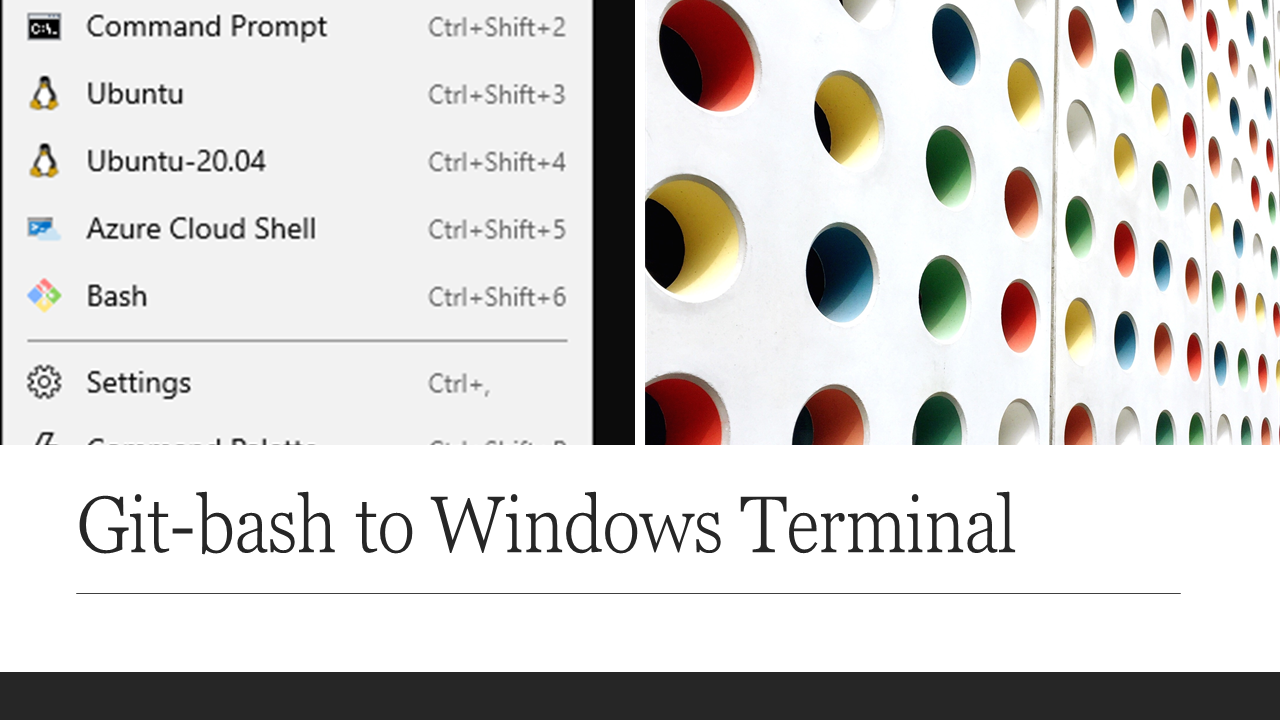
  • git-bash to windows terminal

    git-bash to windows terminal

    The article is about adding git-bash prompt to Windows Terminal, windows Terminal is a separate utility and should not be confused with the windows command prompt or windows power shell.

    The Windows Terminal is a modern, fast, efficient, powerful, and productive terminal application for users of command-line tools and shells like Command Prompt, PowerShell, and WSL. Its main features include multiple tabs, panes, Unicode and UTF-8 character support, a GPU accelerated text rendering engine, and custom themes, styles, and configurations.

    You can get Windows Terminal from Microsoft store.

    Git Bash is a source control management system for Windows. It allows users to type Git commands that make source code management easier through versioning and commit history. Bash is a Linux-based command line (that has been ported over to Windows) while Shell is a native Windows command line.

    By Default Windows Terminal doesn’t come with git-bash added to it, one can add git-bash on the windows terminal following the below steps

    1. Open settings with Ctrl+,
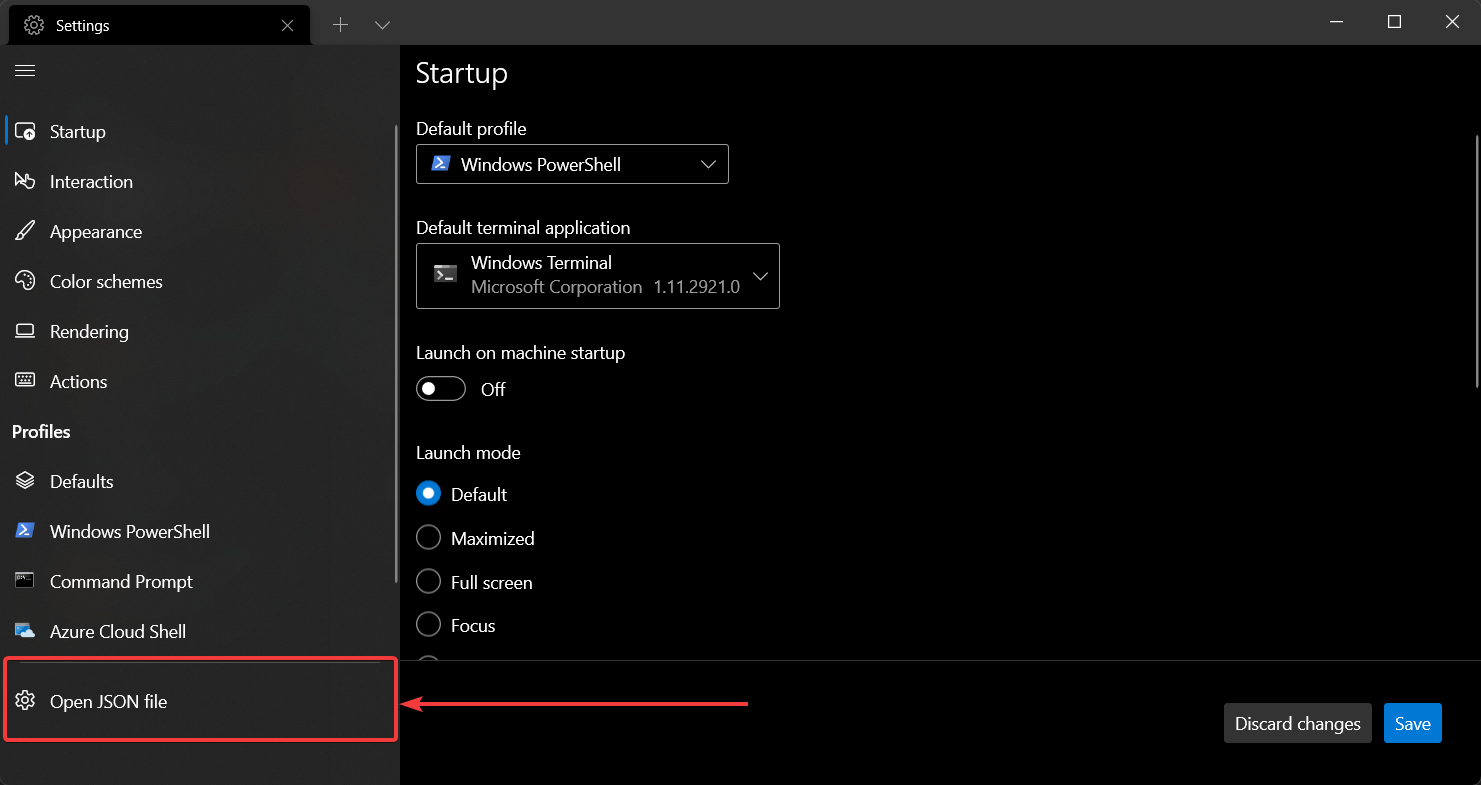
    2. To make git-bash available you’ll need to append to the profiles options below to the "list": portion of the settings.json file:
    Open settings.json in Windows Terminal sidebar
    {
        "$schema": "https://aka.ms/terminal-profiles-schema",
    
        "defaultProfile": "{00000000-0000-0000-ba54-000000000001}",
    
        "profiles":
        {
            "defaults":
            {
                // Put settings here that you want to apply to all profiles
            },
            "list":
            [
                <put one of the configuration below right here>
            ]
        }
    }
    

    Profile options

    Uncomment correct paths for commandline and icon if you are using:

    • Git for Windows in %PROGRAMFILES%
    • Git for Windows in %USERPROFILE%
    • If you’re using scoop
    {
        "guid": "{00000000-0000-0000-ba54-000000000002}",
        "commandline": "%PROGRAMFILES%/git/usr/bin/bash.exe -i -l",
        // "commandline": "%USERPROFILE%/AppData/Local/Programs/Git/bin/bash.exe -l -i",
        // "commandline": "%USERPROFILE%/scoop/apps/git/current/usr/bin/bash.exe -l -i",
        "icon": "%PROGRAMFILES%/Git/mingw64/share/git/git-for-windows.ico",
        // "icon": "%USERPROFILE%/AppData/Local/Programs/Git/mingw64/share/git/git-for-windows.ico",
        // "icon": "%USERPROFILE%/apps/git/current/usr/share/git/git-for-windows.ico",
        "name" : "Bash",
        "startingDirectory" : "%USERPROFILE%"
    }

    You can also add other options like:

    {
        "guid": "{00000000-0000-0000-ba54-000000000002}",
        // ...
        "acrylicOpacity" : 0.75,
        "closeOnExit" : true,
        "colorScheme" : "Campbell",
        "cursorColor" : "#FFFFFF",
        "cursorShape" : "bar",
        "fontFace" : "Consolas",
        "fontSize" : 10,
        "historySize" : 9001,
        "padding" : "0, 0, 0, 0",
        "snapOnInput" : true,
        "useAcrylic" : true
    }

    For sample here is my configuration, i have git-bash in my AppData profile, so the path is a little different

            {
                "guid": "{88139bd0-320b-4050-8215-ac23efa13cad}",
                "commandline": "C:\\Users\\<username>\\AppData\\Local\\Programs\\Git\\bin\\bash.exe -i -l",
                "icon": "D:\\Users\\<username>\\AppData\\Local\\Programs\\Git\\mingw64\\share\\git\\git-for-windows.ico",
                "name" : "Bash",
                "startingDirectory" : "%USERPROFILE%"
            }

    Once your setup is complete, you should be able to see something like this in your windows terminal

    Notes

    • make your own guid as of https://github.com/microsoft/terminal/pull/2475 this is no longer generated.
    • the guid can be used in in the globals > defaultProfile so you can press you can press CtrlShiftT or start a Windows terminal and it will start up bash by default
    "defaultProfile" : "{00000000-0000-0000-ba54-000000000001}",
    
    • -l -i to make sure that .bash_profile gets loaded
    • use environment variables so they can map to different systems correctly.
    • target git/bin/bash.exe to avoid spawning off additional processes which saves about 10MB per process according to Process Explorer compared to using bin/bash or git-bash
    • icon field to: "icon" : "C:\\Program Files\\Git\\mingw64\\share\\git\\git-for-windows.ico"
    • icon can also be referenced like this: "icon" : "%PROGRAMFILES%\\git\\mingw64\\share\\git\\git-for-windows.ico"

    The article is taken from StackOverflow answer written by Archimedes Trajano.

  • 5 Point Sunday – 13-03-2022


    पर हित सरिस धर्म नहिं भाई। पर पीड़ा सम नहिं अधमाई॥

    § गोस्वामी तुलसी दास श्री रामचरितमानस उत्तरकाण्ड


    दूसरों की भलाई के समान अन्य कोई श्रेष्ठ धर्म नहीं है मेरे भई और दूसरों को कष्ट देने के जैसा अन्य कोई पाप नहीं है |
    आवश्यकता पड़ने पर निस्वार्थ भाव से दूसरों को सहयोग देना परहित है|

    Here are the 5 things which I had explored, learned, pondered in last week.

    Read the book “Let’s talk Money” by Monika Halan

    There are many books in the market to give you advice on trading and share markets and mutual funds but none of those book will teach you Money Management, you will get a lot of book which will give you money advice or financial advice like do this and don’t do this, like Rich dad, Poor Dad is a good inspiration book with its lots advice’s but never really telling the kind of questions you ask for buying a financial product, woven in the Indian context Monika Halan tries to take up on the financial instruments available in India. She encompasses her knowledge on Investing, creating a saving fund and plan for the future in this book. In the republished edition chapters on Covid has been added, She has hit the nail on the answers and the kind of questions you should be aware about while making a financial decision, whether its as simple as buying a insurance. You must know what kind of insurances are there and its impact on you on the long run. The book tries to help you with taking such decisions, Its a quite a detailed book and a recommended read.

    Playtime for Kids

    Bought this Wooden hanging ladder for kids to play, it’s a good exercise instrument and kids play hanging on them, and use it as swing . You can put this in your balcony provided your balcony is closed and kids really enjoy on this. I liked it’s features specially semicurved edges of wood, Other similar products on amazon has got rectangular or pointy edges, the wood is good heavy and has premium appeal to it and is of very superior quality. Rope quality is equally good. Gloves are an added advantage. Value for money. My kids liked it very much and enjoying a lot. This can easily be shifted to outdoor as well as indoor.
    You can get this from

    3 Ghazals or Nazm to listen

    3 Ghazals or Nazm to listen to if you get time and i thoroughly enjoyed listening to them, they all are available on prime music, but do listen with below singers only

    बात निकलेगी तो फिर दूर तलक जाएगी – Jagjit Singh
    तेरे ख़ुशबू में बसे ख़त, मैं जलाता कैसे – Jagjit Singh
    आज जाने की जिद ना करो – Farida Khanum

    Movie to Watch

    For the movie I would recommend you to watch “Angamaly Diaries” its Malayalam movie and available on Netflix – Angamaly Diaries is one of the finest “Gangster” genre movie since RGV’s Sathya, but this is hilarious as well. The comic timing is impeccable. The movie captures the raw beauty of Kerala in a mélange of beautiful visuals, thumping music and absolutely raw & stunning natural acting, Most of the start cast is new. The story co-weaves it’s magic in the local dialect, food, music and culture of the people in Angamaly to the plot, while paying careful attention to every intricate detail, thus making it an highly engaging movie.

    Angamaly Diaries on Netflix

    Article on Ukraine and Russia

    An article which I read this week and which explains about the Ukraine and Russia crisis. https://www.moneycontrol.com/news/world/russia-ukraine-conflict-the-case-for-atmanirbharta-8197941.html

  • IaC vs Config Management

    IaC vs Config Management

    To the man who only has a hammer, everything looks like a nail

    With changing times, our tools change and the use of it as well.

    In the last couple of years, a constant question has buzzed the internet what’s the difference between Infrastructure-as-Code (IaC) and Configuration Management (ConfigMgmt) and when to utilize one of them.

    Are they not doing the same thing?

    Why invest in something new when the same thing can be done using ConfigMgmt tools?

    Not only is that question coming up for engineers, but it’s also coming up for the companies that have created the Infrastructure-as-Code and Configuration Management platforms.

    What’s the right decision and which direction should you go in?

    In this blog post, I will try to touch on the differences between IaC and ConfigMgmt, along with the platform and tool you should use in what type of environment.


    Difference between IaC and Configuration Management

    Infrastructure as a CodeConfiguration Management
    IaC creates the SystemConfigMgmt configures the system
    Clicking around UI is not a good way to spend engineer’s effortCreating servers and systems is easier with virtualization, still everything is manual.
     
    Infrastructure-as-Code is used to automatically create any service or system in the cloud or on-prem with codeManually click around a GUI to provision servers and then you had to RDP or SSH into the servers to configure them
    The code is typically a provisioning language, like JSON or YAMLConfiguration Management is a way to configure servers. The configuration could be: Installing applications Ensuring services are stopped or started Installing updates Opening up ports
    HashiCorp Configuration Language (HCL), is getting popular nowadays, which is a much easier and human-readable language compared to JSON and YAML to write infrastructure codeWith servers growing, its not practical for a sysadmin to login to each server and configure them. Some identified this problem and build a tool to automate these tasks
    IaC is also called Provisioning, as in a provisioning tool and is used interchangeablyThe tool was Configuration Management
    Some known IaC’s are:
    – Terraform
    – Plumi
    Some known config management tools are:
    – Ansible
    – Puppet
    – Chef


    Why can’t ConfigMgmt be used for IaC?
     

    It can. Technically, one can use ConfigMgmt for IaC. The biggest problem using Config Management as an IaC is configuration drift.

    Configuration drift is when someone automates a deployment using ConfigMgmt, and after some time a person goes into the server and changes the config. No one will know and there isn’t an actual blocker to stop the person from doing that. That causes config drift.

    With IaC tools like Terraform, it’s different because Terraform has State files that essentially tell the server this is how you’re supposed to look. Don’t change for anyone.


    When and where to use IaC vs Config Management?


    In a startup and you’re primarily using Serverless and Container technologies to deploy apps. In practice, you don’t require Configuration Management. You just need an automated way to create the Serverless service or the containers. For example, you can use an IaC tool to create a Lambda Function.


    ConfigManagement is mainly still useful with enterprises where there still are bare metal and virtualized servers, consider the organization like AWS that has a pretty important job; i.e. provisioning and configuring servers. Behind the scenes under the AWS UI hood is a server running on a virtualized platform, and that server needs to be configured with the dependencies that are needed to run AWS, setting up those things are done using ConfigMgmt.

  • Quick Setup localstack on Windows 10

    What is Localstack?

    Localstack is a fully functional local cloud stack. LocalStack provides an easy-to-use test/mocking framework for developing Cloud applications. It spins up a testing environment on your local machine that provides the same functionality and APIs as the real AWS cloud environment.

    We can run Lambda functions, store data to DynamoDB tables, feed events through Kinesis streams, put your application behind an API Gateway, and much more. And all this happens on your local machine, without ever talking to the cloud. Check out the Github repository.

    Some of the benefits of using localstack

    • Enables a highly efficient dev&test loop. Deploy your application locally in Docker, within seconds
    • Its huge cost savings for development teams of all sizes. No cloud infrastructure needed
    • This Improve software quality through continuous integration. Stop rolling out untested changes.

    Steps to install localstack

    Prerequisite:

    • Create a file with the name docker-compose.yml.
    • Copy the below and paste it into a docker-compose.yml.
    version: "3.8"
    
    services:
      localstack:
        container_name: "${LOCALSTACK_DOCKER_NAME-localstack_main}"
        image: localstack/localstack
        network_mode: bridge
        ports:
          - "127.0.0.1:53:53"                # only required for Pro
          - "127.0.0.1:53:53/udp"            # only required for Pro
          - "127.0.0.1:443:443"              # only required for Pro
          - "127.0.0.1:4510-4530:4510-4530"  # only required for Pro
          - "127.0.0.1:4566:4566"
          - "127.0.0.1:4571:4571"
        environment:
          - SERVICES=${SERVICES-}
          - DEBUG=${DEBUG-}
          - DATA_DIR=${DATA_DIR-}
          - LAMBDA_EXECUTOR=${LAMBDA_EXECUTOR-}
          - LOCALSTACK_API_KEY=${LOCALSTACK_API_KEY-}  # only required for Pro
          - HOST_TMP_FOLDER=${TMPDIR:-/tmp/}localstack
          - DOCKER_HOST=unix:///var/run/docker.sock
        volumes:
          - "${TMPDIR:-/tmp}/localstack:/tmp/localstack"
          - "/var/run/docker.sock:/var/run/docker.sock"
    • In case the formatting is not proper the same can be downloaded from here.
    • Open PowerShell from the folder where above docker-compose.yml is kept.
    • Run docker-compose up command.
    • Builds, (re)creates, starts, and attaches to containers for all LocalStack services.
    • Now you can work with Localstack services like S3.
  • WooCommerce with Gutenberg

    By default the WooCommerce product page comes with a classic layout and doesn’t have much flexibility, the product page usually looks boring and non-responsive. For example look at this page,

    which has a boring frontend and a lot of text in the description, this also doesn’t look very appealing. Now pages like this will make your site visitors run away. To solve this we will add Gutenberg capabilities to our blog page so our page should look great.

    Now to add the Gutenberg feature to your woocommerce, we will need a free plugin called code snippet.

    Once the plugin is activated go to the plugin in your right-hand sidebar, add a new snippet

    Give a cool name to your snippet and add the below code

    // enable gutenberg for woocommerce
    function activate_gutenberg_product( $can_edit, $post_type ) {
     if ( $post_type == 'product' ) {
            $can_edit = true;
        }
        return $can_edit;
    }
    add_filter( 'use_block_editor_for_post_type', 'activate_gutenberg_product', 10, 2 );
    
    // enable taxonomy fields for woocommerce with gutenberg on
    function enable_taxonomy_rest( $args ) {
        $args['show_in_rest'] = true;
        return $args;
    }
    add_filter( 'woocommerce_taxonomy_args_product_cat', 'enable_taxonomy_rest' );
    add_filter( 'woocommerce_taxonomy_args_product_tag', 'enable_taxonomy_rest' );
    
    
    REMOVE DESCRIPTION HEADING
    
    // Remove the product description Title
    add_filter( 'woocommerce_product_description_heading', '__return_null' );

    Once you have added your code make sure you select “Run snippet everywhere”

    Give a nice little description to your snippet.

    Save and activate your snippet.

    With Gutenberg blocks enabled in our product, we can do some amazing things for making our product look awesome, this is how the page looks now.

    Few plugins to help you with Gutenberg Layouts

    Hope this article help you in putting up a great page for your e-commerce site

  • Affiliate marketing using WordPress

    Adding price from your woo-commerce product page

    There are a couple of things I decided to do today, to make my affiliate website look more appealing.

    I am writing a top-10 washing machines page for my blog. I wanted to add a price column which is the price of the product from amazon.in on the date when the product is fetched.

    A few of the things which I wanted to do is to ensure to add the price code to be added from my amazon product page.

    For getting the amazon product onto my blog page I am using wzone importer and wp-automatic

    I have enabled woocommerce on my website, with wzone and wp-automatic, I am fetching products from amazon.in and adding them as an affiliate product on my website.

    There is no woo_commerce shortcode to just fetch the prices, the generate blocks also don’t provide the capability to add the same to the review page

    So I created a child theme from my parent theme and added the below code in my functions.php page

    function custom_price_shortcode_callback( $atts ) {
    
        $atts = shortcode_atts( array(
            'id' => null,
        ), $atts, 'product_price' );
    
        $html = '';
    
        if( intval( $atts['id'] ) > 0 && function_exists( 'wc_get_product' ) ){
            // Get an instance of the WC_Product object
            $product = wc_get_product( intval( $atts['id'] ) );
    
            // Get the product prices
            $price         = wc_get_price_to_display( $product, array( 'price' => $product->get_price() ) ); // Get the active price
            $regular_price = wc_get_price_to_display( $product, array( 'price' => $product->get_regular_price() ) ); // Get the regular price
            $sale_price    = wc_get_price_to_display( $product, array( 'price' => $product->get_sale_price() ) ); // Get the sale price
    
            // Your price CSS styles
            $style1 = 'style="font-size:40px;color:#e79a99;font-weight:bold;"';
            $style2 = 'style="font-size:25px;color:#e79a99"';
    
            // Formatting price settings (for the wc_price() function)
            $args = array(
                'ex_tax_label'       => false,
                'currency'           => 'INR',
                'decimal_separator'  => '.',
                'thousand_separator' => ' ',
                'decimals'           => 2,
                'price_format'       => '%1$s&nbsp;%2$s',
            );
    
            // Formatting html output
            if( ! empty( $sale_price ) && $sale_price != 0 && $sale_price < $regular_price )
                $html = "<del $style2>" . wc_price( $regular_price, $args ) . "</del> <ins $style1>" . wc_price( $sale_price, $args ) . "</ins>"; // Sale price is set
            else
                $html = "<ins $style1>" . wc_price( $price, $args ) . "</ins>"; // No sale price set
        }
        return $html;
     }
     add_shortcode( 'product_price', 'custom_price_shortcode_callback' );

    Now adding this simple shortcode on my page, provides me with the quick price from the product page of my website.

    USAGE (for example product ID 37):

    [product_price id="37"]
    

    This code is tested and works. You will get this:

  • Generate a public key from private key

    Generate a public key from private key

    openssl genrsa -out mykey.pem 1024

    will actually produce a public – private key pair. The pair is stored in the generated mykey.pem file.

    openssl rsa -in mykey.pem -pubout > mykey.pub

    will extract the public key and print that out. Here is a link to a page that describes this better.

    openssl rsa -in key.pem -pubout -out pubkey.pem

    To get a usable public key for SSH purposes, use ssh-keygen:

    ssh-keygen -y -f key.pem > key.pub

    This public key format is compatible with OpenSSH. Append the public key to remote:~/.ssh/authorized_keys and you’ll be good to go

    ssh-keygen -y [-f input_keyfile]
    -y This option will read a private OpenSSH format file and print an OpenSSH public key to stdout.
    
    docs from SSH-KEYGEN(1)


  • Send email from google sheets

    This weekend, I was working on a personal project this requires me to send personalized certificates to all participants over email.

    Composing mail, Adding attachments, Writing messages Adding email addresses, and sending to the recipient is tedious and time-consuming if I need to do this for multiple users.

    Google sheets provide a nice feature to automate this process using “script-editor”. The first step is to collect user details using google forms, once we have those details we create a sheet for those details.

    For creating certificates I used canva tool (an online tool) to create certificates, use the existing templates and the names in the certificates from the name in the form you created.

    Google forms created the sheet and I uploaded the certificates to the google drive folder, these certificates will now be sent to each recipient from the sheet.

    The next step is to configure google sheets to send mail

    We will not use the sheet created by form, instead will create a new sheet.

    Go to chrome browser and type sheets.new in the URL bar, this will create a new spreadsheet for adding our data.

    Here we need to add the attachments field from google drive. The catch here is to add the file-id in the attachment column, which means, we need to collect the ‘file-id’ of all the files which we want to add as an attachment for every row.

    The manual step is to right-click on the file and click on the get link to get the link of the file. The box marked in red is the file id.

    Doing this for multiple files could be time-consuming, so we take google sheets script editor’s help again and create a new sheet to collect the data.

    Go ahead and create a new sheet, open tools -> script editor

    /* modified from @hubgit and http://stackoverflow.com/questions/30328636/google-apps-script-count-files-in-folder 
    for this stackexchange question http://webapps.stackexchange.com/questions/86081/insert-image-from-google-drive-into-google-sheets by @twoodwar
    */
    function listFilesInFolder(folderName) {
    
       var sheet = SpreadsheetApp.getActiveSheet();
       sheet.appendRow(["Name", "Date", "Size", "URL", "Download", "Description", "Image"]);
    
    
    //change the folder ID below to reflect your folder's ID (look in the URL when you're in your folder)
        var folder = DriveApp.getFolderById("Add your folder id here");
        var contents = folder.getFiles();
    
        var cnt = 0;
        var file;
    
        while (contents.hasNext()) {
            var file = contents.next();
            cnt++;
    
               data = [
                    file.getName(),
                    file.getDateCreated(),
                    file.getSize(),
                    file.getUrl(),
                    "https://docs.google.com/uc?export=download&confirm=no_antivirus&id=" + file.getId(),
                    file.getId(),
                    file.getDescription(),
                    "=image(\"https://docs.google.com/uc?export=download&id=" + file.getId() +"\")",
                ];
    
                sheet.appendRow(data);


        };
    };

    Add the folder id in the above code, we get the folder id the same way we did for file id.

    Run the script, it will get the file id and its name along with file size, file link, and thumbnail image of all files from the specified folder, copy the file-id and align it with the proper name in the firs sheet we created for sending mail.

    Our sheet is now ready with all the details and will look more or less like below.

    Go to tools -> script editor and add the code for sending mail.

    The code below is going to pick the email id from the first column and rename the file attachment with the name of the user from the second column and sent the mail to the user.

    after sending mail to each user, the script will update the last column with the value EMAIL_SENT, this is added to avoid sending duplicate mail to the same recepient

    // This constant is written in column C for rows for which an email
    // has been sent successfully.
    var EMAIL_SENT = 'EMAIL_SENT';
    
    /**
     * Sends non-duplicate emails with data from the current spreadsheet.
     */
    function sendEmails2() {
      var sheet = SpreadsheetApp.getActiveSheet();
      var startRow = 2; // First row of data to process
      var numRows = 56; // Number of rows to process
      // Fetch the range of cells A2:B3
      var dataRange = sheet.getRange(startRow, 1, numRows, 6);
      // Fetch values for each row in the Range.
      var data = dataRange.getValues();
      for (var i = 0; i < data.length; ++i) {
        var row = data[i];
        var emailAddress = row[0]; // First column
        var emailSent = row[5]; // Sixth column
        // var certificateURL = row[4];
        var name = row[1];
        var id = row[4];
        var certificateBlob = DriveApp.getFileById(id).getBlob().setName(name + "_certificate");
        // var certificateBlob = UrlFetchApp.fetch(certificateURL).getBlob().setName(name + "_certificate");
        var comp_name = row[3] // Cometetion Name, Fifth Column
        var subject = 'Thank you for participating in ' + comp_name + ' Competition';
        if (emailSent !== EMAIL_SENT) { // Prevents sending duplicates
          MailApp.sendEmail({
            to: emailAddress, 
            subject: subject, 
            htmlBody: "Thank you for participating, Please find you e-Certificate! <img src='cid:certificate'> <br> <br>",
            inlineImages:
            {
              certificate: certificateBlob
            }
          });
          sheet.getRange(startRow + i, 6).setValue(EMAIL_SENT);
          // Make sure the cell is updated right away in case the script is interrupted
          SpreadsheetApp.flush();
        }
      }
    }

    This code is taken from google send mail tutorial

    once the code is executed an EMAIL_SENT field will be added to the sheet.

    Note: This can send only 100 emails using this method in 24 hours, so use cautiously.

  • Download MP3 Tracks from a YouTube Video Using YouTube-DL

    We all love music, be it gym, during work, or just chilling out, I do use amazon prime and spotify but there are times when we face internet trouble and when we do get grumpy when not able to listen to some good numbers, for such times I keep some music downloaded and play them from my Bluetooth speakers, that way I don’t have to do a lot of pairing from multiple devices with internet.

    I use youtube-dl which is a freely available tool based on python, I try to keep things simple, and on my android phone downloaded termux which helps me run Linux commands and provides me with a development environment.

    The next step is to allow termux permission to your storage where you would keep your music which can then be accessed by your music player.

    I won’t go into details on how to set up termux and allow termux access to your phone storage, you can google search and can get a lot of articles to do this.

    To convert music to mp3 you may need to install two packages such as avconv and ffmpeg you can install any of these or both, youtube-dl defaults to converting using avconv.

    $ sudo apt install ffmpeg avconv

    I try to keep my work env clean so I create a virtual env.

    $ python -m venv youtube-dl
    $ cd youtube-dl/
    $ source bin/activate
    $ pip install youtube-dl

    Once you have youtube-dl installed move to the directory where you want to download your mp3’s

    $ cd /path/to/download/music
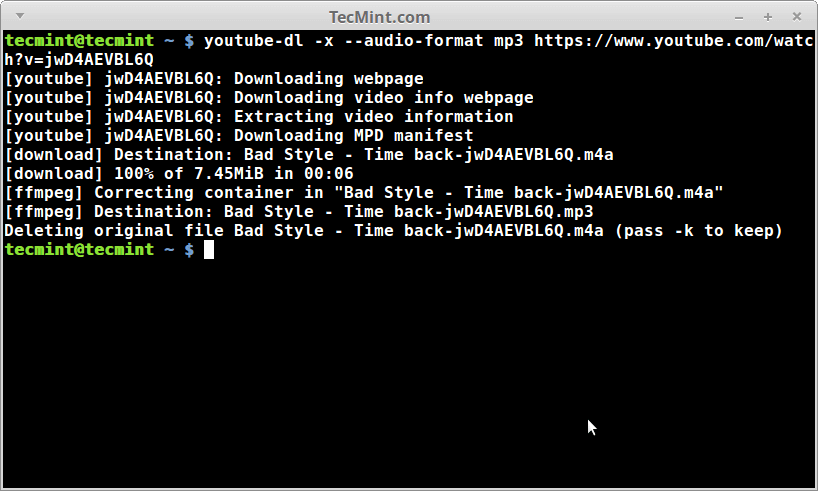
    $ youtube-dl -x --audio-format mp3 https://www.youtube.com/watch?v=jwD4AEVBL6Q

    The command will download the music you want, you can also give the playlist which you want to download, just ensure to add it in " " otherwise, this downloads only one file as there is ‘&’ in the URL which sends your command in the background and downloading only one file.

    If you are a fan of cover art, you may want to try and download the album cover as well.

    $ youtube-dl -x --embed-thumbnail --audio-format mp3 https://www.youtube.com/watch?v=jwD4AEVBL6Q

    To download the entire playlist

    youtube-dl -x --embed-thumbnail --audio-format mp3 " https://www.youtube.com/watch?v=jwD4AEVBL6Q&list=PL7E6EB68D499BECEB"

    It is possible that you may not like all the songs in other people’s playlists. So what if you want to download many songs from different playlists? Well a workaround on that matter is to get a list of URLs in a single file.

    Write the URLs in a file called videos.txt and make sure to keep one URL at a line. Then you can use the following "for" loop to download the songs:

    $ for i in $(<videos.txt); do youtube-dl -x --audio-format mp3 $i; done

  • programmatically install packages with emacs27 and above

    In the emacs community, this is often a frequent question how can you install packages, while M-x package-list and M-x package-install can be a lot of help, you do not want to do it every time you install emacs, a better way is to add your packages in init.el and let emacs programmatically download and install you most frequent used packages.

    Here is a quick step on how you can achieve this with your init.el file is to use package-refresh-contents, but this will only work with the packages already present in your emacs library, basically this will just refresh those packages to their latest version and that’s it.

    But how we can download packages which we need on a machine where we are setting emacs for the first time.

    The first step is to add your elpa and melpa repositories, I do this by adding the following in my inti.el file, this add the repos and initialize them

    ;; load emacs package repostiroies.<br>(setq package-archives '(("gnu" . "https://elpa.gnu.org/packages/")<br>("marmalade" . "http://marmalade-repo.org/packages/")<br>("melpa" . "https://melpa.org/packages/")<br>("elpy" . "https://jorgenschaefer.github.io/packages/")))

    next, we initialize the package list code

    (package-initialize)
    (when (not package-archive-contents)
      (package-refresh-contents))
    

    next, I have created my own variable for my packages where I keep all my packages

    (defvar myPackages
      '(better-defaults
        ein
        elpy
        flycheck
        material-theme
        py-autopep8))

    and here the variable is called using package-install function already initialized with package-initialize command

    (mapc #'(lambda (package)
        (unless (package-installed-p package)
          (package-install package)))
          myPackages)

    This provides me with the ability to avoid touching my main package installation code every time and I need to simply update my package list variable, which does package-install in my next emacs run, or I just call eval-buffer and reread the init.el file.

  • find all files in current folder & subfolders

    We all know Linux is all about files and folders and there are times when we just want to recursively find files in Linux based on wildcard match in the current folder and its subfolders.

    A simple answer is to use the find command like below

    find . -name "foo*"

    But as sysadmins we will not limit ourselves to just the find command, so let’s jump in a little deeper and see various ways to achieve something trivial.

    A much faster way is to use locate command, but this command is dependent on updatedb, assuming we have our updatedb updated, simple run

    locate "$PWD" | grep -P <pattern>

    to find any file quickly.

    Now if you have a shell with new globbing enabled(you can read more about globbing here). YOu can enable globbing using “shopt -s globstar” you can simply use below to find any files or folders recursively. This is supported by Bash 4, zsh and similar shells.

    echo **/*foo*

    or you can have a function defined in your shell

    f() { find . -name "*$1*"; }
    
    $ f some_filename

    There is also this neat utility called as fd, this is a simple and fast alternative to find, and is available at GitHub for free to download and test syntax to follow:

    fd PATTERN
    Stackoverflow User: kenorb

    If you want to look for a filename or pattern from within the current directory, you can type:

     pwd | xargs -n 1 -I {} locate "filepattern"

    However, if you want a picture:

    tree -P "*foo"

    Well, that’s it for find, please keep following my blog for more such articles.

  • Find text within a file in Linux

    Linux can be difficult and can be challenging for those who do not want to learn and get their hands dirty, System administrators work hard enough to acquire the skills to tame Linux, it’s not an easy journey and often requires years of practice. This requires them to work with text, configuration files, log files, and all sorts of text files. With so many files, it’s not often easy to find the configuration items you want to find. So I decided to list down some ways that can help you find what you are looking for in Linux

    1. Find using Grep

    grep -rnw '/path/to/somewhere/' -e 'pattern'
    • -r or -R is recursive, t’s worth noting: the -r option is lazy (traverses depth-first, than stops after the first directory), while R is greedy (will traverse the entire tree correctly)
    • -n is line number, and
    • -w stands for match the whole word.
    • -l (lower-case L) can be added to just give the file name of matching files.
    • -e is the pattern used during the search

    Along with these, --exclude--include--exclude-dir flags could be used for efficient searching:

    • Search through those files which have .c or .h extensions:
    grep --include=\*.{c,h} -rnw '/path/to/somewhere/' -e "pattern"
    • This will exclude searching all the files ending with .o extension
    grep --exclude=\*.o -rnw '/path/to/somewhere/' -e "pattern"
    • For directories it’s possible to exclude one or more directories using the --exclude-dir parameter. For example, this will exclude the dirs dir1/, dir2/ and all of them matching *.dst/:
    /* modified from @hubgit and http://stackoverflow.com/questions/30328636/google-apps-script-count-files-in-folder 
    for this stackexchange question http://webapps.stackexchange.com/questions/86081/insert-image-from-google-drive-into-google-sheets by @twoodwar
    */
    function listFilesInFolder(folderName) {
    
       var sheet = SpreadsheetApp.getActiveSheet();
       sheet.appendRow(["Name", "Date", "Size", "URL", "Download", "Description", "Image"]);
    
    
    //change the folder ID below to reflect your folder's ID (look in the URL when you're in your folder)
        var folder = DriveApp.getFolderById("1iSk-d1LUOaO2jo0agmVO6JE2oOfhz4Mn");
        var contents = folder.getFiles();
    
        var cnt = 0;
        var file;
    
        while (contents.hasNext()) {
            var file = contents.next();
            cnt++;
    
               data = [
                    file.getName(),
                    file.getDateCreated(),
                    file.getSize(),
                    file.getUrl(),
                    "https://docs.google.com/uc?export=download&confirm=no_antivirus&id=" + file.getId(),
                    file.getId(),
                    file.getDescription(),
                    "=image(\"https://docs.google.com/uc?export=download&id=" + file.getId() +"\")",
                ];
    
                sheet.appendRow(data);


        };
    };

    2. For die-hard find fans

    If you strictly want to use find then use find + grep

    find /path/to/somewhere/ -type f -exec grep -nw 'textPattern' {} \;

    Add -s (--no-messages) to grep, and 2>/dev/null at the end of the command to avoid lots of Permission denied messages issued by grep and find

    find / -type f -exec grep -sH 'text-to-find-here' {} \; 2>/dev/null

    This will print the lines in the files where the text appears, but it does not print the file name.

    find . -name '*.js' -exec grep -i 'string to search for' {} \; -print

    3. Doing the same with Awk

    pattern is the string you want to match in the files.

    awk '/^(pattern)/{print}' /path/to/find/*

    4. Searching withing GUI

    Searchmonkey: Advanced file search tool without having to index your system using regular expressions. Graphical equivalent to find/grep. Available for Linux (Gnome/KDE/Java) and Windows (Java) – open-source GPL v3, some features include

    • Advanced Regular Expressions
    • Results shown in-context
    • Search containing text
    • Panel to display line containing text

    5. Alternatives

    While you should never replace (or alias) a system command with a different program, due to the risk of mysterious breakage of scripts or other utilities, if you are running a text search manually or from your own scripts or programs you should consider the fastest suitable program when searching a large number of files a number of times.

    Andrew Gallant’s Blog claims: “ripgrep is faster than {grep, ag, git grep, ucg, pt, sift} Of particular interest is his section on regex implementations and pitfalls.The following command searches all files, including hidden and executable:

    $ rg -uuu foobar

    The Silver Searcher (ag) claims it is 5-10x faster than Ack. There are some stackoverflow answers which refer to this application. GitHub doesn’t appear as recent as ripgrep’s and there are noticeably more commits and branches with fewer releases, it’s hard to draw an absolute claim based on those stats. In short ripgrep is faster and efficient with a tiny learning curve.

    I took the liberty to add some answers from stackoverflow.

  • Financial Wisdom

    The importance of Financial knowledge and maintaining financial discipline and hygiene is critical in today’s times.

    “omps.in is reader-supported and is a participant in the Amazon Associates Program. When you buy through links on our site, we may earn an affiliate commission.

    I am an IT professional and work on technology, I have met folks & friends from my stream of work who are not very well aware of the money caveats, this happens mainly because we do not understand the nitty-gritty of the taxes, investments, and savings, we solely rely on the salary we earn and usually take financial advice from friends and colleagues for investments. 

    We fail to understand the importance of financial knowledge till it become very late in life and we find ourselves in situation where we end up depending on our PPF Savings and asking loan from others. 

    This is my story and financial learning, which I am picking from the books I am reading. I am going to share tips and tricks from the books I read, to help others who are looking for financial freedom.

    Financial discipline is important, from the last 5 years I am following financial hygiene and following tips on how to save and invest and am now confident to say I somewhat have achieve financial freedom, still its a long way to go.

    The list contains part 1 of the books I am already reading, next set of books soon to follow.

    Rich Dad Poor Dad: What the Rich Teach Their Kids About Money That the Poor and Middle Class Do Not! by Robert Kiyosaki


    Buy at Amazon

    Let’s Talk Money: You’ve Worked Hard for It, Now Make It Work for Youby Monika Halan


    Buy at Amazon

    How To Be Your Own Finance Planner in 10 Steps (Master Your Financial Life Book 2) by Manish Chauhan (Kindle Edition)


    Buy at Amazon

    The Richest Man in Babylon by George S Clason (Kindle Edition)


    Buy at Amazon

    The Psychology of Moneyby Morgan Housel (Paperback)


    Buy at Amazon

    The Victory Project: Six Steps to Peak Potential by Saurabh Mukherjea, Anupam Gupta (Hardcover) | Offered by Cloudtail India


    Buy at Amazon

    Romancing The Balance Sheet-Second Edition by Dr Anil Lamba (Hardcover)


    Buy at Amazon

    HDFC Bank 2.0 by Tamal Bandyopadhyay (Paperback) 


    Buy at Amazon

    Common Stocks and Uncommon Profits and Other Writings (Wiley Investment Classics) by Philip A. Fisher, Kenneth L. Fisher (Kindle Edition) 


    Buy at Amazon

    Stocks to Riches: Insights on Investor Behaviour by Parag Parikh (Paperback) 


    Buy at Amazon

  • Jupyter Notebook

    Jupyter Notebook

    I have been programming with python for quite some time and been using Jupyter notebook for some data science projects, I like the UI and Jupter notebook provides with a web-based interactive development environment for python notebooks, code, and data.

    There are many blogs which will help you setup your notebook environment and itse really not difficult either and can be summarised in the following 4 commands

    $ python -m venv jupyter
    
    $ source jupyter/bin/activate
    
    $ pip install jupyter
    
    $ jupyter notebook

    Recently I tried to explore more on how I can possibly start jupyter notebook on my Android Device. The command does work on Android, but it comes with caveats. Here is somewhat quick detailed post on setting up Jupyter Notebook on Android Phone/Tablet.

    To run jupyter notebook, we require a working python development environment on Android.

    There are many ways to do this. I choose and prefer to use Termux App.

    Termux is an Android terminal emulator and Linux environment app that works directly with no rooting or setup required. A minimal base system is installed automatically – additional packages are available using the APT package manager.

    – https://termux.com

    I have taken this install instruction from the stackoverflow answer with my amendments to it.

    1. Install the Termux app.
    2. Open Termux, then enter/run the following commands in the prompt:
      $ apt install clang python fftw libzmq freetype libpng pkg-config libcrypt
      $ LDFLAGS="-lm -lcompiler_rt" pip install jupyterFinally, test the notebook out by running:
    3. $ jupyter notebook
      

    When you run jupyter notebook, a notebook server starts up and dumps some information to stdout. When you see the line:

    Copy/paste this URL into your browser when you connect for the first time,
    to login with a token:

    copy the following URL, paste it into the browser on your device, and then hit go. You should end up with something that looks like this:

    I tested these instructions out a Samsung Galaxy Tab 10 2020 (wifi) running stock Android 10 (10).


    I tried to provide as much details as pososble, but in case if i missed anything please let me know in the comments.


  • Emacs – 30 Days Challenge

    Emacs – 30 Days Challenge

    This is my learning journey to learn emacs in the next 30 Days. I am going to share my learning on this blog page.
     
    Below is the outline of the content I am planning to touch upon during my 30 Days challenge.
    • Day 1: Welcome to emacs
    • Day 2: Help in Emacs

    “ Emacs is the extensible, customisable, self-documenting real-time display editor.”

    – Emacs Manual

    Emacs can control OS subprocesses, helps in indenting programs, perform functions on many files at once and act as a simple text editor.

    Emacs can be easily altered to behave in a certain way as you want and is highly customizable. Advanced users of emacs can go beyond simple customization and can create entirely new commands. These new commands are simple programs written in LISP and are also known as macros.

    Downloading

    Most of my writing I do mainly with a Mac Pro, so I downloaded the mac version of emacs, there are multiple emacs variants present, but I preferred vanilla emacsformacosx, which gives me enough room for customization as per my needs.

    The commands and helps mentioned in my blogs will work on all the emacs variants regardless of your choice of OS.

    I downloaded MAC OS X from http://emacsformacosx.com/.

    In a lot of blogs and on #emacs IRC channel, people recommend using vanilla emacs while learning emacs. Customized variants of emacs come with pre-built commands which limits the learning curve.
    It is much easier to download and install emacs on Mac OS X. Download the latest version of emacs. Double click on the installer and follow the instructions.

    For Windows and Linux you can download GNU Emacs releases from a nearby GNU mirror; or if automatic redirection does not work see the list of GNU mirrors, or use the main GNU ftp server.

    GNU Emacs development is hosted on savannah.gnu.org.

    Working with emacs

    • Starting the editor: once installed start emacs from Launchpad -> emacs, clicking on which took me to the editor in its full glory, with a nice welcome message with a link to the manual and the beginner emacs tutorials to get a start working with emacs and to quickly get help in emacs “C-h (Hold down Ctrl and Press h)

    emacs welcome screen
    When starting the emacs editor for the first time, the emacs welcome screen

    Few things to note and which are global to emacs.

    We are following the standard emacs documentation while learning emacs to do our tasks, for the rest of the blog and my future emacs/non-emacs related posts, I am going to use Control Key as ‘C’. Alt or Esc Key as ‘M’ or referred in the document as meta key. Shift as ‘S’.

    Control keys are the “CTRL” keys on your keyoboard, usually on the bottom-left and bottom-right(near the shift key) keys.

    Meta Keys are “ALT” or “ESC” key on your keyboard.

    Shift Keys are the “SHIFT” keys on the left(below caps lock key) and right (below enter key) on your keyboard.

    Moving around

    Arrow keys on the keyboard can help you navigate around emacs text, it works similar to other text editors. Still, it is important that you learn the CTRL and Meta(ALT/ESC) key bindings to navigate around your document/code-block.
    Examples of some common key-bindings which you will be using almost daily while working within emacs.
    Keys Movement
    C-v View next screen also as Page Up.
    M-v Move Backward one screen or Page Down.
    C-l redisplay the text with the cursor at the center of the screen.
    C-p Previous line or up arrow key.
    C-b back one character or left arrow key.
    C-f forward one character or right arrow key.
    C-n Next line or down arrow key.
    M-f Move one forward one word.
    M-b Move back one word.
    C-a Move to the beginning of the line.
    C-e Move to the end of the line.
    M-a Move to the beginning of the sentence.
    M-e Move to the end of the sentence.
    C-u to specify a repeat count. C-v and M-v are exceptions as they won’t move pages but instead will scroll to that many lines forward/backward
    C-g Kill the running command in minibuffer, or in case emacs stop responding.
    C-d Delete the next character after the cursor.
    DEL delete the character just before the cursor.
    Insert text insertion is as simple as typing it. you can use the C-u to insert text as well. for eg. C-u 10 – will insert 10 hyphens “-———”.
    M-</td> Kill the word before the cursor.
    M-d Kill the word after the cursor
    C-k Kill from the cursor position to the end of the line.
    M-k Kill to the end of the current sentence.
    C-</td> Set the mark, move around with the above keys to highlight the text.
    C-y Yank the file back.
    C-x C-f Find the file, can be used for creating a file or opening an existing file.
    C-x C-s Save the file, when you made some changes to the file and want to write the same to disk or save it.
    C-x s Save some buffers.
    C-x C-b List all the opened Buffers.
    C-x b Switch buffer around.
    C-x C-c Quit Emacs.
    These are some of the common keys for moving around while in emacs.
     
    In the beginning, it seems hard to remember these key bindings for moving around within emacs. As we go along and with practice, these key sequences will become part of daily use.
     
    As a beginner, the above chart looks intimidating, and using arrow keys is easier to move around, but we should practice adopting and try use Ctrl and Meta sequences wherever possible and become more proficient using them, in the long run, you will observe it is much easier to work with key sequences.
  • Free HTTPS for your website!!

    Free HTTPS for your website!!

    I know we are not big enterprise who can buy SSL certificates and done with it.

    For small bloggers like me and you it becomes challenging Day by Day to keep up with Google’s changing policies. Apart from Google’s policies, it is also important to keep our site secure running and ranking in Google.

    Enabling SSL on your website is another SEO trick to rank in google.

    I tried to write down the steps for setting up yourself with cloudflare and get free https, for the impatient you can directly go to the section for cloudflare.

    Google wants us to use https to rank our site, they prioritize HTTPS over HTTP and when you are hosting your personal website/blog site on Github you should use https.

    With CloudFlare DNS service and your Github custom domain this will speed up your site and make it load faster on the browser since CloudFlare is going to cache your site and service the request from the nearest cached site your site will load much faster.

    I have been at this point where I want to migrate from my Github Pages blog from http to https for the obvious advantages of using https,

    From Github blog

    HTTPS (most recognizable as the lock icon in your browser’s address bar) encrypts traffic between GitHub’s servers and your browser giving you confidence that the page you asked for is the page you’re reading, from the site you think it is, and that others can’t snoop on or modify its contents along the way.

    This led me to search google and the solution was well hidden in on one of the Github issues hence I am making this ready guide for reference.

    Github has native support for *.github.io domains from 2016. They finally enabled https support for a custom domain in 2018 partnering with Let’s Encrypt as the certificate authority.

    Benefits of using Github?

    • It’s Superfast
    • Easy to setup
    • site deployment is just a git push away.
    • and has braved the worlds biggest DDOS attack.

    Benefits of using CloudFlare

    • Speed up your site.
    • Fast, Global CDN.
    • Ensure Application Availability
    • Auto minify your site
    • custom redirect rules.

    I am assuming you have your Github account handy and now you need to go ahead and make your Cloudflare account. If you have never set up Github pages, please follow this guide to help you with.

    once ready. Let’s

    Configure Github Pages

    Go to your Github repository and settings, we need to make sure our repository using the custom domain name and using https.
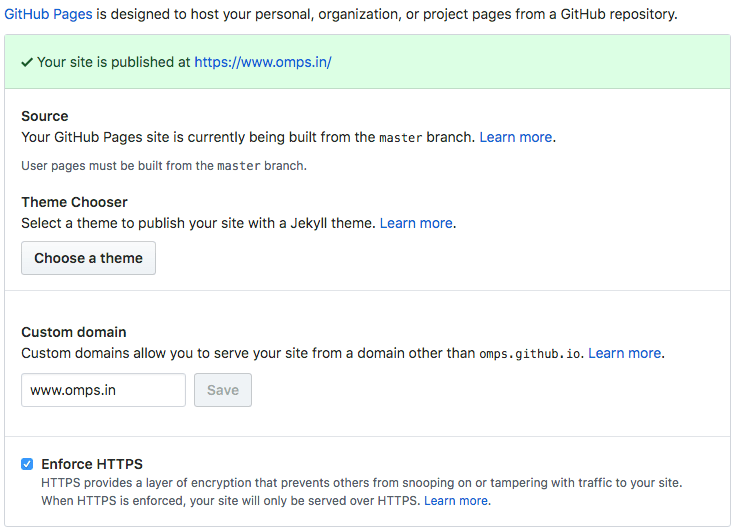
    cloudflare_cname

    Save. That’s it and we are done.

    Configure Hosting Providers DNS Server.

    If you are using CNAME or ALIAS records for your custom domain, you’re all set and your site should be accessible over HTTPS. If it is, and your site loads correctly over HTTPS.

    In case you are using A record Github requires you to modify your registrar’s A records to match with new IP addresses.

    If you have previously configured Github pages, you could recall that for HTTP requests GitHub uses the following IP addresses.

    1
    2
    
    192.30.252.153
    192.30.252.154
    

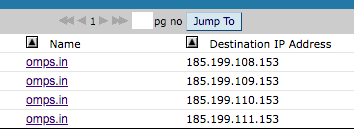
    and this needs to be updated with the new https record which GitHub provides as.

    1
    2
    3
    4
    
    185.199.108.153
    185.199.109.153
    185.199.110.153
    185.199.111.153
    

    and should look like this

    omps.in_a_record

    run dig command to check if the records are updated. omps.in$ dig +noall +answer omps.in omps.in. 300 IN A 104.31.70.126 omps.in. 300 IN A 104.31.71.126

    after this, you need to remove the CNAME file from your repository and do a GitHub push. re-add the cname fine and do a git push to the master. This will help refresh Github’s CNAME record.

    Configuring CloudFlare

    Login to CloudFlare and set up a new site, for our custom domain name. In the end, we need to update our hosting provider’s domain name settings to use CloudFlare DNS instead of the current ones. CloudFlare will then import all our existing configuration on to their servers.

    Just ensure that www CNAME record redirects to your GitHub pages URL. CNAME is just an alias. In this case, we tell DNS to respond address of omps.github.io whenever omps.in is queried.

    cloudflare_cname

    Forcing HTTPS

    Now that CloudFlare handles our DNS, we need to force all requests to use HTTPs. On the Crypto tab, just change the SSL option to Full. To better understand each of these options, here is a picture taken from the CloudFlare blog:
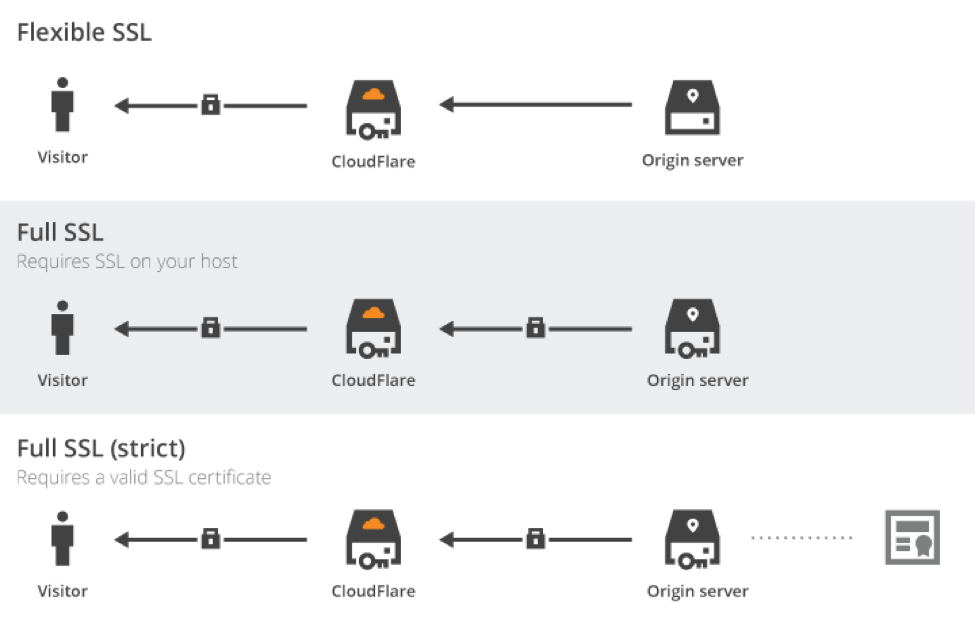
    cloudflare_flexible_ssl

    With flexible SSL, all communications between CloudFlare servers and GitHub ones are not encrypted. Not really secured, even if your domain would be served in HTTPs.

    However, full modes encrypt all communication streams, even behind CloudFlare servers. In this case, the hosting server needs to supports SSL. We need to stay in loose mode, as GitHub won’t validate the SSL certificate with a custom domain name.

    Our site is now (depending on DNS propagation time, up to 48 hours) served in HTTPs and is compatible with faster HTTP/2.

    Force Redirection to HTTPs Version

    We are going to add three rules for our domain (fortunately, we get three free rules with the free plan):

    omps_in_page_rules

    First one enables caching on all URL, Second one redirect permanently URL without www to the one with www, Last one to force the use of https everywhere. As a result, even if we mistakenly go on http://omps.in, we will be redirected to a cached version of https://omps.in.

    Note the use of the wildcard * on all rules to match every URL. You can retrieve the value replaced by the wildcard using the regex-like [$1, $2, …] arguments.

    About CloudFlare Caching

    CloudFlare is also a CDN (Content Delivery Network). It has a lot of servers around the world and optimizes the way it delivers our data. To take advantage of it, we just had to enable caching using page rules. We can configure it more finely via the Caching tab.

    We cache every request to GitHub for 4 hours (by default). Instead, all our requests would be served by the closest CloudFlare CDN server, saving fractions of seconds of international data transit. Our static website is already blazing fast, let’s increase again its reactivity.

    As we asked for a total cache, we need to purge cached pages at each change. We can either do it using CloudFlare built-in API or manually. As I don’t publish several posts a day, I can wait a few hours before seeing my post is publicly available. Or I just purge the cache using CloudFlare user interface.

    Purging CloudFlare Cache

    Note there is also a Development Mode feature. It simply disables the cache layer, allowing you to check in realtime all your changes. It is especially useful if you need to debug in production. But nobody does this kind of thing, right? 😉

    Now once again we collect the CloudFlare nameservers,

    cloudflare_ns_servers

    go back to our hosting provider and update the NS records.

    update_registrar_ns_records

    While going through this is pretty simple, I must warn you that it will take around 24/48 HRS for the changes to propagate fully, so don’t be impatient and wait. Once your changes are reflected, you would see a much faster response.
  • How to Setup a Personal Static blog with Github Pages

    How to Setup a Personal Static blog with Github Pages

    What is Github

    Github is a code hosting platform for collaboration and version control using git which is quite similar to SVN and Mercurial.

    Github allows us to work with other developers together on the projects.

    You can sign up for github at https://github.com

    Github_account

    Essential components of Github are:

    1. Repositories
    2. Branches
    3. Commits
    4. Pull Request
    5. Git (The version control software Github is built on.)

    To learn more about git do visit the git-scm page.

    What is Github pages.

    GitHub Pages is a static site hosting service designed to host your personal, organization, or project pages directly from a GitHub repository.

    Basically with Github pages you can host your static HTML site, like your portfolio, your blog on an information site, which do not require a lot of content-changes very frequently.

    GitHub Pages is a static site hosting service and doesn’t support server-side code such as, PHP, Ruby, or Python.

    We can use programming languages such as Ruby and Python to generate static sites, which can then be pushed into your repositories.


    You must not use github pages as a free hosting service, their term place certain usage limit as follows:

    • GitHub Pages source repositories have a recommended limit of 1GB .
    • Published GitHub Pages sites may be no larger than 1 GB.
    • GitHub Pages sites have a soft bandwidth limit of 100GB per month.
    Any commercial transaction or commercial software on GH Pages restrain a soft limit. E-commerce sites, online businesses and websites with commercial transactions falls into this category.

    imitations

    GH Pages sites are subject to the following usage limits:

    • The source repositories hosting your blog have a recommended limit of 1GB .
    • Published sites cannot be no larger than 1 GB.
    • The sites will have a soft bandwidth limit of 100GB per month.
    • And your site will only be build for 10 times in an hour, if you are using Jekyll or pelican as static site generator.

    While you have hosted your content on the GitHub pages. Please also make sure you follow these guidelines and must refrain from:

    • Content or activity that is illegal or otherwise prohibited by our Terms of Service or Community Guidelines
    • Violent or threatening content or activity
    • Excessive automated bulk activity (for example, spamming)
    • Activity that compromises GitHub users or GitHub services
    • Get-rich-quick schemes
    • Sexually obscene content
    • Content that misrepresents your identity or site purpose

    Why Github Pages

    GitHub pages uses static sites technically, a static website is only HTML and CSS and doesn’t involve scripting. To change the content which appears source code needs to be edited directly. In simple words, the content of the website will remain same for every visit whereas for dynamic sites the content will keep on changing. For e.g. the news feed of facebook is a dynamic site, but book review site can be a static site, since the content remains constant for somtime. There are many reasons which makes a static site desirable than a dynamic site as follows:

    1. Security

    Static websites are usually safe when compared to dynamic websites. APIs and Java script handle the dynamic functions of Static sites, eliminating the risk of getting hacked.
    Dynamic website but are more prone to get hacked due to many content sources and plugins.

    A WP WhiteSecurity report states that about 70% of WordPress sites are at risk of getting hacked by malicious hackers because of lack of maintenance and upgrading. Ugh, scary.

    2. Reliability

    At times we must have come across this error message “The connection could not be established“. This happens because of errors with databases.
    Service basic HTML files makes it a lot easier to host them anywhere with ease like on a CDN.
    During an attack on the server, the request for static site redirects to another closest node, whereas dynamic sites could go down for few hours.

    3. Speed

    The absence of middleman/database makes the static site much more speedy and easy to load. A static site is ten times faster than a dynamic site that is built with a CMS. Another reason for a static website to run faster is that it can be served from the node closest to the browser.

    According to research by Kissmetrics, about 47% of people expect the website to load within 2 seconds, and a whopping 40% of people will not wait for the website to load for longer than 3 seconds. Hence, getting a static website also helps in getting more traffic by reducing abandonment rate caused due to slow loading.

    Page Load Time

    Hosting and Price

    Static websites have basic HTML files which require less space making the hosting of these websites cheaper to that of dynamic websites. Organizations with static website save up on the costs and channel those resources to integrate Git or automated builds to incorporate the latest changes in the system.

    Scalability

    What to do when your website is finally up and running? Handling massive traffic on a dynamic website might be a cumbersome process as it requires complex code playing on the server. Static websites which are only HTML files can be easily scaled up by just increasing the bandwidth.

    Technological advancements.

    There was a time when online store websites would have to rely on dynamic websites for their organization and integrate those complex coding and deal with tedious scripting.

    With tools like Magento, it is possible to have a static website for shop-centric businesses. A Java-script based shopping cart, called Snipcart, integrates e-commerce site’s functionalities to a static website, eliminating the need for dynamic websites. Snipcart dashboard can manage sales and product inventories, and its API can be integrated with shipping service providers and inventory management software systems as well.

    With some static generators and static website hosting platforms that allow Github integration, global CDN, SSL certificates along with free custom domains. Hosting providers such Netlify, go up the notch and even deal with redirects such as 404 errors, proxies, and even password protection.

    Therefore, it is safe to say that static websites have made a terrific comeback and they are here to stay with more advantages than drawbacks. As a website is a digital face of the business, organizations must take into consideration all the factors and necessities of their business website and must assess all the new tools and platforms before making a website.

    online stores

    What are the requirements for hosting on github pages

    • You need to have a github account, register here.
    • enable gh-pages for your repository.
    • you can access the repository as .github.io

    How to Do GitHub hosting.

    Create a repository

    Head over to GitHub and create a new repository named username.github.io, where username is your username (or organization name) on GitHub. Create repository If the first part of the repository doesn’t exactly match your username, it won’t work, so make sure to get it right.
    Clone the repository

    Go to the folder where you want to store your project, and clone the new repository:

    1
    
    ~ $ git clone https://github.com/username/username.github.io    
    

    Hello World

    Enter the project folder and add an index.html file:

    1
    2
    
    ~ $ cd username.github.io
    ~ $ echo "Hello World" > index.html
    

    Push it

    Add, commit, and push your changes:

    1
    2
    3
    
    ~ $ git add --all
    ~ $ git commit -m "Initial commit"
    ~ $ git push -u origin master
    

    …and you’re done!

    Fire up a browser and go to https://username.github.io.

    Once this is done learn to set your custom domain.Github Pages

  • Using Ipython

    I started to move along with using python 3, I want my python shell for to be working properly. As many of us must be aware, Python Shell is not really a very interactive prompt and most of the time, while I am working with Python, I tend to install Ipython as an alternative to work more flexibly with Python Shell.

    When I downloaded and installed python3. I do not get ipython, this needs to be installed separately.

    The pip3 install ipython3 didn’t came of much help.

    As, I am having multiple versions of python running on to my system, one is the native python version 2.7.11 which by default came with my OS, other python version 3.5.1 which I had explicity downloaded for using python3.

    Googling around did helped much either, and the solution was pretty simple for implementation so I am documenting here in case anyone needs a quick help.

    $ which ipython
    /usr/local/bin/ipython
    $ which python3
    /usr/local/bin/python3
    
    cp /usr/local/bin/ipython /usr/local/bin/ipython3
    

    edit the ipython3 file.

    #!/usr/local/bin/python
    
    # -*- coding: utf-8 -*-
    import re
    import sys
    
    from IPython import start_ipython
    
    if __name__ == '__main__':
        sys.argv[0] = re.sub(r'(-script\.pyw|\.exe)?$', '', sys.argv[0])
        sys.exit(start_ipython())

    Change the shebang which is #!/usr/local/bin/python to #!/usr/local/bin/python3

    Save the file.

    run ipython3, I am assuming /usr/local/bin is in your system path.

    $ ipython
    Python 3.5.1 (v3.5.1:37a07cee5969, Dec  5 2015, 21:12:44) 
    Type "copyright", "credits" or "license" for more information.
    
    IPython 4.2.0 -- An enhanced Interactive Python.
    ?         -> Introduction and overview of IPython's features.
    %quickref -> Quick reference.
    help      -> Python's own help system.
    object?   -> Details about 'object', use 'object??' for extra details.
    
    In [1]:

    What we basically did, was copied the original ipython file which was being used by python version 2 and ensured that to work with python3 by changing its shebang line, which tells ipython to use the desired python version. In case, if you do not already have ipython installed then pip install ipython will just work, post your python 3 installation.

    Though this is a quick hack, but really not an ideal solution.

    Try and use virtual environment in case of multiple python installations.