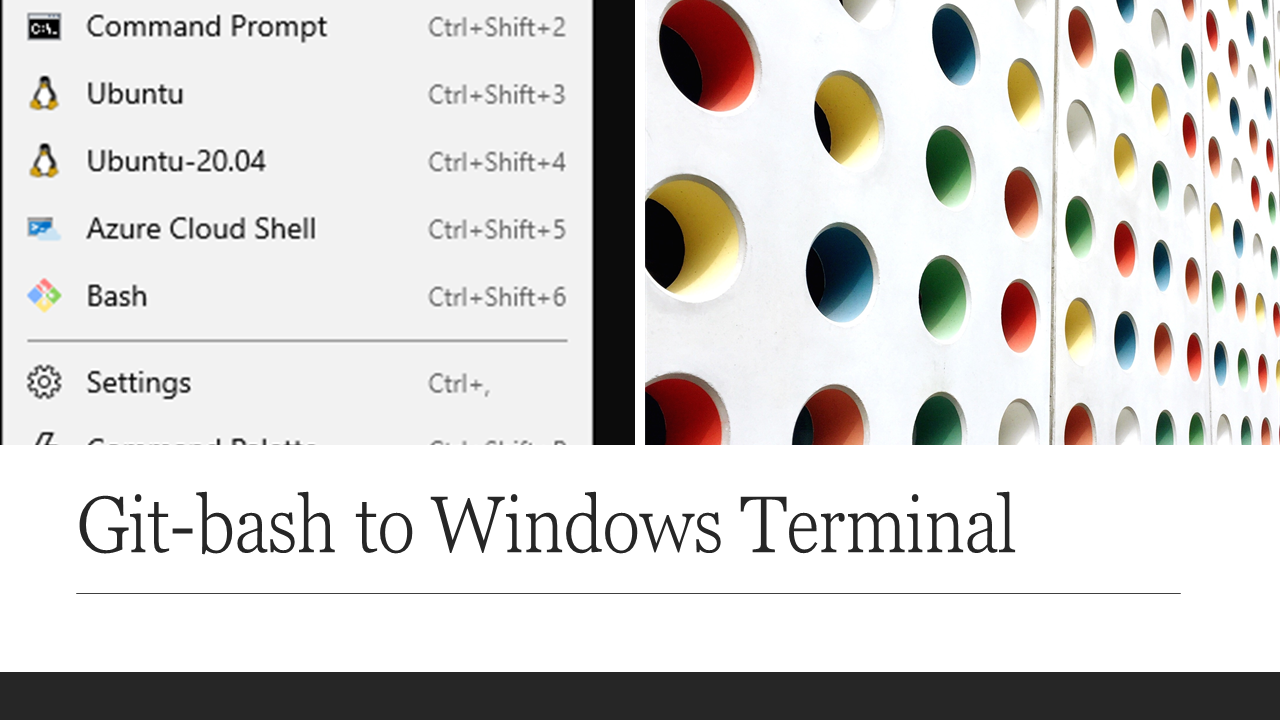
The article is about adding git-bash prompt to Windows Terminal, windows Terminal is a separate utility and should not be confused with the windows command prompt or windows power shell.
The Windows Terminal is a modern, fast, efficient, powerful, and productive terminal application for users of command-line tools and shells like Command Prompt, PowerShell, and WSL. Its main features include multiple tabs, panes, Unicode and UTF-8 character support, a GPU accelerated text rendering engine, and custom themes, styles, and configurations.
You can get Windows Terminal from Microsoft store.
Git Bash is a source control management system for Windows. It allows users to type Git commands that make source code management easier through versioning and commit history. Bash is a Linux-based command line (that has been ported over to Windows) while Shell is a native Windows command line.
By Default Windows Terminal doesn’t come with git-bash added to it, one can add git-bash on the windows terminal following the below steps
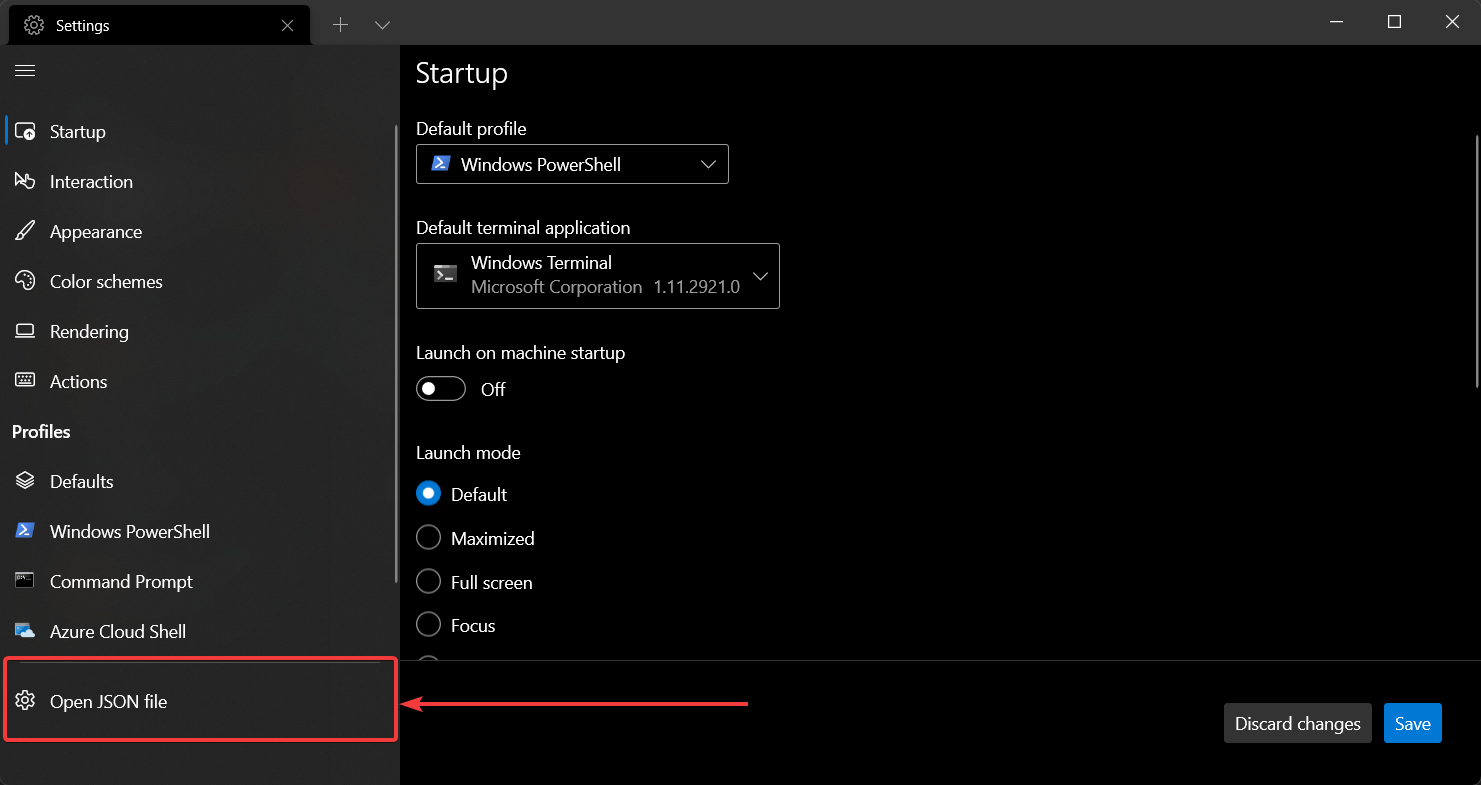
- Open settings with Ctrl+,
- To make git-bash available you’ll need to append to the profiles options below to the
"list":portion of thesettings.jsonfile:
{
    "$schema": "https://aka.ms/terminal-profiles-schema",

    "defaultProfile": "{00000000-0000-0000-ba54-000000000001}",

    "profiles":
    {
        "defaults":
        {
            // Put settings here that you want to apply to all profiles
        },
        "list":
        [
            <put one of the configuration below right here>
        ]
    }
}
Profile options
Uncomment correct paths for commandline and icon if you are using:
- Git for Windows in
%PROGRAMFILES% - Git for Windows in
%USERPROFILE% - If you’re using scoop
{
    "guid": "{00000000-0000-0000-ba54-000000000002}",
    "commandline": "%PROGRAMFILES%/git/usr/bin/bash.exe -i -l",
    // "commandline": "%USERPROFILE%/AppData/Local/Programs/Git/bin/bash.exe -l -i",
    // "commandline": "%USERPROFILE%/scoop/apps/git/current/usr/bin/bash.exe -l -i",
    "icon": "%PROGRAMFILES%/Git/mingw64/share/git/git-for-windows.ico",
    // "icon": "%USERPROFILE%/AppData/Local/Programs/Git/mingw64/share/git/git-for-windows.ico",
    // "icon": "%USERPROFILE%/apps/git/current/usr/share/git/git-for-windows.ico",
    "name" : "Bash",
    "startingDirectory" : "%USERPROFILE%"
}
You can also add other options like:
{
    "guid": "{00000000-0000-0000-ba54-000000000002}",
    // ...
    "acrylicOpacity" : 0.75,
    "closeOnExit" : true,
    "colorScheme" : "Campbell",
    "cursorColor" : "#FFFFFF",
    "cursorShape" : "bar",
    "fontFace" : "Consolas",
    "fontSize" : 10,
    "historySize" : 9001,
    "padding" : "0, 0, 0, 0",
    "snapOnInput" : true,
    "useAcrylic" : true
}
For sample here is my configuration, i have git-bash in my AppData profile, so the path is a little different
        {
            "guid": "{88139bd0-320b-4050-8215-ac23efa13cad}",
            "commandline": "C:\\Users\\<username>\\AppData\\Local\\Programs\\Git\\bin\\bash.exe -i -l",
            "icon": "D:\\Users\\<username>\\AppData\\Local\\Programs\\Git\\mingw64\\share\\git\\git-for-windows.ico",
            "name" : "Bash",
            "startingDirectory" : "%USERPROFILE%"
        }
Once your setup is complete, you should be able to see something like this in your windows terminal

Notes
- make your own
guidas of https://github.com/microsoft/terminal/pull/2475 this is no longer generated. - the
guidcan be used in in theglobals>defaultProfileso you can press you can press CtrlShiftT or start a Windows terminal and it will start up bash by default
"defaultProfile" : "{00000000-0000-0000-ba54-000000000001}",
-l -ito make sure that.bash_profilegets loaded- use environment variables so they can map to different systems correctly.
- target
git/bin/bash.exeto avoid spawning off additional processes which saves about 10MB per process according to Process Explorer compared to using bin/bash or git-bash - icon field to:
"icon" : "C:\\Program Files\\Git\\mingw64\\share\\git\\git-for-windows.ico" - icon can also be referenced like this:
"icon" : "%PROGRAMFILES%\\git\\mingw64\\share\\git\\git-for-windows.ico"
The article is taken from StackOverflow answer written by Archimedes Trajano.