Tag: 96

  • Download MP3 Tracks from a YouTube Video Using YouTube-DL

    We all love music, be it gym, during work, or just chilling out, I do use amazon prime and spotify but there are times when we face internet trouble and when we do get grumpy when not able to listen to some good numbers, for such times I keep some music downloaded and play them from my Bluetooth speakers, that way I don’t have to do a lot of pairing from multiple devices with internet.

    I use youtube-dl which is a freely available tool based on python, I try to keep things simple, and on my android phone downloaded termux which helps me run Linux commands and provides me with a development environment.

    The next step is to allow termux permission to your storage where you would keep your music which can then be accessed by your music player.

    I won’t go into details on how to set up termux and allow termux access to your phone storage, you can google search and can get a lot of articles to do this.

    To convert music to mp3 you may need to install two packages such as avconv and ffmpeg you can install any of these or both, youtube-dl defaults to converting using avconv.

    $ sudo apt install ffmpeg avconv

    I try to keep my work env clean so I create a virtual env.

    $ python -m venv youtube-dl
    $ cd youtube-dl/
    $ source bin/activate
    $ pip install youtube-dl

    Once you have youtube-dl installed move to the directory where you want to download your mp3’s

    $ cd /path/to/download/music
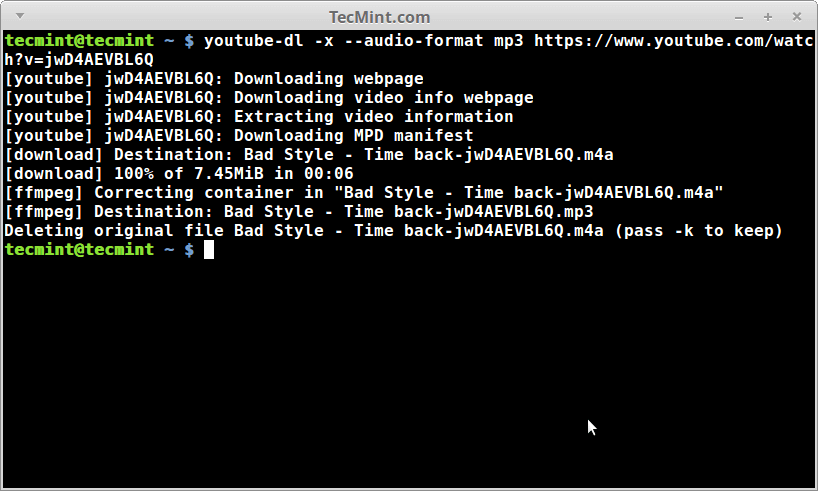
    $ youtube-dl -x --audio-format mp3 https://www.youtube.com/watch?v=jwD4AEVBL6Q

    The command will download the music you want, you can also give the playlist which you want to download, just ensure to add it in " " otherwise, this downloads only one file as there is ‘&’ in the URL which sends your command in the background and downloading only one file.

    If you are a fan of cover art, you may want to try and download the album cover as well.

    $ youtube-dl -x --embed-thumbnail --audio-format mp3 https://www.youtube.com/watch?v=jwD4AEVBL6Q

    To download the entire playlist

    youtube-dl -x --embed-thumbnail --audio-format mp3 " https://www.youtube.com/watch?v=jwD4AEVBL6Q&list=PL7E6EB68D499BECEB"

    It is possible that you may not like all the songs in other people’s playlists. So what if you want to download many songs from different playlists? Well a workaround on that matter is to get a list of URLs in a single file.

    Write the URLs in a file called videos.txt and make sure to keep one URL at a line. Then you can use the following "for" loop to download the songs:

    $ for i in $(<videos.txt); do youtube-dl -x --audio-format mp3 $i; done

  • find all files in current folder & subfolders

    We all know Linux is all about files and folders and there are times when we just want to recursively find files in Linux based on wildcard match in the current folder and its subfolders.

    A simple answer is to use the find command like below

    find . -name "foo*"

    But as sysadmins we will not limit ourselves to just the find command, so let’s jump in a little deeper and see various ways to achieve something trivial.

    A much faster way is to use locate command, but this command is dependent on updatedb, assuming we have our updatedb updated, simple run

    locate "$PWD" | grep -P <pattern>

    to find any file quickly.

    Now if you have a shell with new globbing enabled(you can read more about globbing here). YOu can enable globbing using “shopt -s globstar” you can simply use below to find any files or folders recursively. This is supported by Bash 4, zsh and similar shells.

    echo **/*foo*

    or you can have a function defined in your shell

    f() { find . -name "*$1*"; }
    
    $ f some_filename

    There is also this neat utility called as fd, this is a simple and fast alternative to find, and is available at GitHub for free to download and test syntax to follow:

    fd PATTERN
    Stackoverflow User: kenorb

    If you want to look for a filename or pattern from within the current directory, you can type:

     pwd | xargs -n 1 -I {} locate "filepattern"

    However, if you want a picture:

    tree -P "*foo"

    Well, that’s it for find, please keep following my blog for more such articles.

  • Ubuntu on Windows

    Today I was struggling to work on python virtual environment and realised that running a Python Virtual env in windows is not as simple and easy as compared to Linux, the difficulty here is attributed to two major things.

    • How to activate the virtual env (including installing and setting up python)
    • Where goes your virtualenv

    Unlilke Linux, where the projects directory is in my home dir, in windows it could possible be technically anywhere if you are the only user of your system. So I decided to install Ubuntu on my windows Laptop. I have heard earlier that Ubuntu comes compaitable with Windows 10. Installing and settingup Ubuntu on Windows is fairly easy but Before i jump on telling how you should set up Ubuntu on Linux here is my quick guide of setting up python development environment on windows.

    To Setup Ubuntu Desktop Let’s quickly go to Microsoft Store installed on your windows machine and Search for Ubuntu – I got the latest Ubuntu image as Ubuntu 20.04

    Ubuntu 20.4 in microsoft store

    Downloading Ubuntu doesn’t really make it work. We need to do some tweaking with our windows machine, before we can actually launch Ubuntu Linux.

    While I clicked on the Launch Button, I got this error

    Here we need to enable the Linux Subsystem for Windows, a detailed guide on how to enable the subsytem is provided by Microsoft here.

    Step 1 – Enable the Windows Subsystem for Linux

    Open PowerShell as Administrator and run:

    dism.exe /online /enable-feature /featurename:Microsoft-Windows-Subsystem-Linux /all /norestart

    Step 2 – Enable Virtual machine feature

    dism.exe /online /enable-feature /featurename:VirtualMachinePlatform /all /norestart

    and thats it. Though i later on went ahead and got WLS2 enabled. The command and guide for that also given with the above document from Microsoft.

  • Git Simplified.

    Set up with github. (Very good tutorial from Lifehacker)
    How the Heck do i use Github

    To remove the origin
    git remote remove origin

    To add origin
    git remote add origin https://github.com/<username>/<repository name>.git

    — Please do not add the “< >” while using the above command.
    for e.g. https://github.com/omps/webdevel.git

    use the origin as SSH and without authentication.
    you can follow the stack overflow question on this. 
    or can just add 
    “git remote add origin ssh://git@github.com/<username>/<repository name>.git

    To push to the repository.
    git push origin master
    If you have created the directly locally and wanted to push it to the github.com server, you may need to force the origin master.
    i did as “git push origin master –force”, please note that this may wipe your existing content.

    How to deploy keys.
    Github article.

    Generating keys
    A very good github tutorial related to generating keys for github.

    When the permission is denied.
    github’s own manual to fix it.

    More to come……. 

  • fortune cookies

    $ for i in {1..20}; do fortune -w ; sleep 3; clear; done

    if you are a slow reader adjust the sleep time accordingly.

  • a bash timer

    $ alias timer='export ts=$(date +%s);p='\''$(date -u -d @"$(($(date +%s)-$ts))" +"%H.%M.%S")'\'';watch -n 1 -t banner $p;eval "echo $p"'

  • processes thread of a user

    There are options with ps itself for better filter options, than may be doing it with grep, worth a try.

    $ ps -LF -u user

  • chown me to who you are

    use the other folder permission as reference. Here, changing the permission of all files in folder to the permission similar to the parent folder.

    chown –reference=. ./*

  • copy the keys

    easier than editing .ssh/authorized_keys file.

    ssh-copy-id user@host

  • zombie hunting

    find the zombie processes.

    ps aux | awk ‘$8 == “Z” { print }’

  • apt is awesome

    find the package name of the $file from the apt repository.

    apt-cache search $file

  • looking for files modified some time back in a dir and its subdir

    $ find . -type f -print0 | xargs -0 stat -c’%Y :%y %12s %n’ | sort -nr | cut -d: -f2- | head

    Will go through all the files in the directory specified, uses `stat` to print out last modification time, then sorts numerically in reverse, then uses cut to remove the modified epoch timestamp and finally head to only output the last 10 modified files.

  • Check to see what’s running on a particular port

    Whats running on this port.

    $ sudo netstat -tulpn | grep :portnumber

  • Mac addresses Linux

    This is how we can get the mac addresses of all the interfaces on the system.

    $ /sbin/lspci -v | grep -i “Device Serial Number”

  • Things I learnt to do with emacs.

    1. To tweet.
    2. To Blog.
    3. As a personal todo and task taker using org-mode.
    4. As an IRC Client.
    5. As a text based web browser.
    6. As an MUA(Mail User Agent).
    7. As a shell terminal.
    8. As a file manager.
    9. Using github as version control.
    10. Last but not the least as an editor, to code and do things amazingly. Take the tour.

  • weblogger.el

    This post is being posted by webblog.el module of emacs.

  • Famous emacs users(who are not famous for using emacs)

    Was using emacs from quite sometime as my primary editor for two reasons one as to learn more about emacs as an editor and two a wonderful platform to do many things. And during my learning curve came across this page created by “Wenshan” and this list is just amazing.

    mơ bắt cá 1

    But of course using emacs will not end up making me a great programmer, so these relatively known people and me might only thing in common is we used emacs at some point of time(or may have kept using).

  • Pop up windows in kde and gnome.

    I use this primarily to pop up something while I am usually working on doing some coding and need a reminder.

    zenity –info –text “Remember the milk”

    This pops up a window telling me what to do. Setting this with “at” helps me schedule it too.

  • Summary of disk…

    Summary of disk usage, excluding other filesystems, summarised and sorted by size

    du -xks * | sort -n

  • Programming languages

    curl http://en.wikipedia.org/wiki/List_of_programming_languages | grep "li>" | awk -F"title=" '{ print $2 }' | awk -F\" '{ print $2 }'

    list all programming launguages